
AWS Architecture Diagram Icons: Complete Guide to Official AWS Icon Library
AWS architecture icons are the visual vocabulary of cloud infrastructure diagrams. They transform abstract service names into recognizable symbols that communicate design, deployment, and topology at a glance. Whether you're documenting a production system, preparing a presentation, or sketching a new architecture, using the right icons in the right way makes the difference between a diagram that clarifies and one that confuses.
This guide covers everything you need to know about AWS architecture icons: where to find official icons, usage guidelines, how to use them in popular diagramming tools, and best practices for professional, standards-compliant diagrams.
Cloud Architecture
Create cloud architecture diagrams for AWS, Azure, GCP, and more. Design scalable infrastructure with professional cloud icons.
Complete guide to official AWS architecture diagram icons, where to download them, usage guidelines, Draw.io/Lucidchart/Visio setup, and best practices.
Click Cloud Architecture to open AI Line Studio and generate diagrams from natural language in seconds.
What Are AWS Architecture Icons?
AWS architecture icons are the official visual representations of Amazon Web Services products and resources. They are designed to be simple, so you can easily use them in diagrams, whitepapers, presentations, data sheets, and posters.
- Product icons for all AWS services
- Resource icons for additional assets
- Tools to help you build diagrams
- Guidelines for proper usage
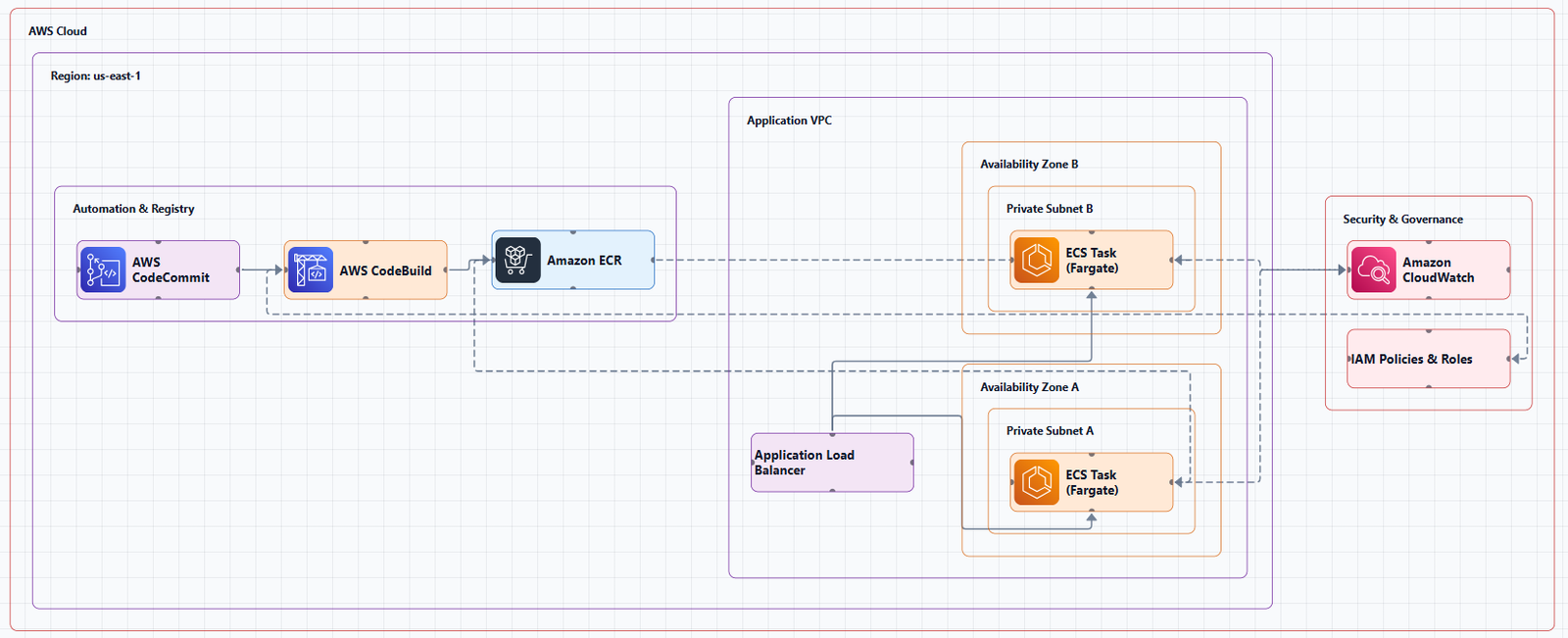
AWS allows customers and partners to use these toolkits and assets to create architecture diagrams. The icons are available under the Creative Commons Attribution-NoDerivs (CC BY-ND) 2.0 license, meaning you can distribute and use them unmodified, but you cannot create derivative works.
Where to Find Official AWS Icons
The Official AWS Architecture Icons Page
The primary source is the AWS Architecture Icons page at aws.amazon.com/architecture/icons/. This page provides:
Quarterly Release Schedule
AWS updates the architecture icon packages on a quarterly basis:
- Q1: End of January
- Q2: End of April
- Q3: End of July
- Q4: No releases
The latest release as of this writing is Release 23 (2026.01.30), dated January 30, 2026. Always check that you're using up-to-date icons, because some third-party libraries may contain legacy icon sets.
Official Download Options
AWS provides the icons in several formats:
- SVG files, Scalable vector graphics for use in most diagramming tools
- PowerPoint deck, A PowerPoint presentation containing all icons for use in presentations
- ZIP download, The complete icon package in one downloadable file
Third-Party Sources for AWS Icons
Several community-maintained repositories provide the official AWS icons in developer-friendly formats:
- aws-icons (npm), An npm package with all AWS icons as SVGs, updated to the latest official release
- thesvg.org, Over 739 AWS architecture icons sourced from the official package
- aws-icons-for-plantuml, PlantUML-compatible AWS icon library
- CDN distribution, Icons are available via jsDelivr CDN
AWS Icon Usage Guidelines
Permitted Uses
AWS allows you to use the icons in:
- Architecture diagrams
- Whitepapers
- Presentations
- Data sheets
- Posters
Do's and Don'ts
Do:
- Use icons to illustrate how AWS products work together
- Include the product name somewhere close to the icon
- Use the icons as they appear within AWS
Don't:
- Don't crop, flip, or rotate icons
- Don't distort or change the icon shape in any way
- Don't use AWS product icons to represent your own product or service
Color and Styling
Each AWS service category uses official colors for resource icon shapes. All resource icon shapes must use strokeColor=#ffffff and gradientDirection=north.
When creating diagrams, place all service icons as direct children of the AWS Cloud group with text cells for section labels. Always connect edges to service icons, not to container or group shapes.
AWS Icons in Popular Diagramming Tools
Draw.io (diagrams.net)
Draw.io provides several years' worth of AWS icon (shape) libraries, including Amazon's 3D or isometric shapes.
To enable AWS shapes in Draw.io:
- In the left panel, click More Shapes at the bottom
- Scroll down to the Networking section
- Select the AWS library you want to use
- Click Apply
To use an AWS template:
- Click Arrange > Insert > Template
- Expand the Cloud category, then select AWS
- Click Insert to add the template to your canvas
To find AWS shapes:
- Enable one of the AWS shape libraries and you'll see a number of sub-categories in the left panel
- Hover over a shape to see a tooltip that tells you what it represents in AWS notation
Note: The aws-architecture-diagram-skill from AWS Labs provides a verified icon catalog with only icons confirmed to render correctly in draw.io.
Lucidchart
Lucidchart's AWS Simple Icon library is the official set as designated by Amazon Web Services. This means any system engineer or IT administrator can quickly diagram and implement planned infrastructure.
Key features:
- Official AWS icons in the shape library
- Additional Amazon libraries including messaging, deployment, and AWS containers
- Ability to upload SVG files or Visio stencils as custom libraries
How to access:
- Search for AWS shapes by clicking the magnifying glass in the top left corner
- Shapes can be dragged from the toolbox into your document
Microsoft Visio
Visio provides a dedicated AWS Diagrams template with over twenty stencils and hundreds of shapes.
To open an AWS diagram template in Visio:
- Select New > Templates > Network > AWS Diagrams
- When you already have a diagram open, find AWS stencils on the Shapes panel by selecting More Shapes > Network
Available stencils include: AWS Analytics, AWS Compute, AWS Database, AWS Machine Learning, AWS Networking Content Delivery, AWS Security Identity Compliance, AWS Storage, and many more.
For Visio for the web: AWS diagrams are available in Visio Plan 1 but not in Visio in Microsoft 365.
PowerPoint
AWS provides an official PowerPoint deck containing all architecture icons. This is particularly useful for creating presentation-ready diagrams.
The PowerPoint deck includes:
- All AWS service icons
- Resource icons
- Additional assets
- Guidelines
You can also find AWS architecture diagram templates on platforms like SlideBazaar that use official AWS icons enclosed in color-accented containers.
Figma
Figma offers several ways to use AWS icons:
AWS Diagram UI Kit, A comprehensive set of AWS icons and components for Figma, enabling you to visualize and communicate complex cloud architectures.
Copy from PowerPoint, You can copy and paste icons from the official AWS PowerPoint deck into your Figma diagrams.
Figma's component library, Drag and drop shapes, arrows, and UML symbols with Figma's intuitive component library.
PlantUML
The aws-icons-for-plantuml library provides PlantUML-compatible AWS icons, updated to the latest official release.
Quick start:
- Declare stencil icons
- Group into VPC/region zones
- Connect with arrow syntax
- Wrap in a PlantUML fence
Cloudcraft
Cloudcraft provides AWS architecture diagrams with official icons, including 3D or isometric views. AWS Developer Advocate Rohini Gaer explores Cloudcraft as one of three powerful tools for creating engaging architecture diagrams.
Best Practices for Using AWS Icons
1. Always Use Official Icons
Generic shapes or third-party icon packs make diagrams look amateur and confuse readers. Always use the official AWS icon library.
2. Keep Icons Consistent
Use the same icon style and size throughout your diagram. Draw.io guidelines recommend 48x48 service icons inside colored category containers.
3. Use Product Names with Icons
AWS recommends including the product name somewhere close to the icon. Don't assume readers will recognize an icon and know what it means.
4. Don't Modify Icons
AWS icons are provided under CC BY-ND 2.0, no derivatives. Don't crop, flip, rotate, distort, or change the icon shape in any way.
5. Group by Category
Use colored category containers to group related services. Common groupings include Compute, Storage, Database, Networking, and Security.
6. Include a Legend
If your diagram uses custom colors or notations, include a legend to explain them. This is especially important for multi-cloud diagrams that include non-AWS services.
7. Keep Icons Up to Date
AWS updates icon packages quarterly. Check that you're using the latest version, especially for recently launched services.
Common Mistakes to Avoid
Mistake 1: Using outdated icons. AWS releases new icons quarterly. Some third-party libraries may contain legacy icon sets. Always verify you're using the latest version.
Mistake 2: Modifying icons. AWS icons cannot be cropped, flipped, rotated, or distorted. Use them as-is.
Mistake 3: No labels. Icons without text labels leave readers guessing which service is which. Include product names close to each icon.
Mistake 4: Inconsistent sizing. Using different icon sizes for similar services creates visual noise. Standardize on a consistent size (e.g., 48x48 for service icons).
Mistake 5: Connecting edges to containers. Always connect edges to service icons, not to container or group shapes.
Mistake 6: Mixing icon sources. Using icons from different sources (official, third-party, custom) creates inconsistency. Stick to the official AWS icon library.
AWS Icon Categories
AWS organizes icons into service categories. Common categories include:
| Category | Example Services |
|---|---|
| Compute | EC2, Lambda, ECS, EKS, Fargate |
| Storage | S3, EBS, EFS, Glacier |
| Database | RDS, DynamoDB, Redshift, ElastiCache |
| Networking | VPC, CloudFront, Route 53, ALB, API Gateway |
| Security | IAM, Cognito, WAF, Shield, KMS |
| Management | CloudWatch, CloudTrail, Config, Systems Manager |
| Analytics | Athena, Glue, Kinesis, QuickSight |
| Integration | SQS, SNS, Step Functions, EventBridge |
These categories help you organize diagrams logically and make them easier to read.
Tools That Automatically Use Official AWS Icons
Several tools automatically generate AWS diagrams using official icons:
AI Line Studio generates AWS architecture diagrams from natural language descriptions using official AWS icons. Describe your system, "a 3-tier web app on AWS with EC2, RDS, and CloudFront", and it produces a structured diagram with the correct icons in 15 to 20 seconds. For AWS-specific workflows, the dedicated AI cloud diagram generator turns AWS descriptions into production-ready visuals. If you're working across multiple providers, the AI architecture diagram builder supports AWS, Azure, GCP, and OCI with over 3,000 officially licensed icons.
AWS Workload Discovery scans your AWS account and generates interactive diagrams using official icons.
Cloudcraft provides 3D isometric AWS architecture diagrams with official icons and cost estimation.
The AWS Diagram MCP Server enables AI assistants to generate draw.io diagrams with official AWS4 icons.
Summary
AWS architecture icons are the foundation of professional cloud diagrams. Key takeaways:
- Always use official AWS icons from the AWS Architecture Icons page
- Icons are updated quarterly, check for the latest release
- Don't modify icons, they are provided under CC BY-ND 2.0
- Use consistent sizing and grouping, 48x48 service icons in colored category containers
- Include product names with icons, don't assume readers will recognize them
- Connect edges to service icons, not to container shapes
Whether you're using Draw.io, Lucidchart, Visio, Figma, or an AI-powered generator, using the correct AWS icons makes your diagrams professional, readable, and trusted by engineers and stakeholders alike.
If you're ready to start creating AWS architecture diagrams with official icons, try the AWS architecture diagram tool for templates and practical examples. For automated diagram generation, the AI cloud diagram generator turns AWS descriptions into visuals with the correct icons instantly.