
How to Create Cloud Architecture Diagrams with Official AWS and Azure Icons
Cloud Architecture
Create cloud architecture diagrams for AWS, Azure, GCP, and more. Design scalable infrastructure with professional cloud icons.
Use official AWS and Azure icons in your architecture diagrams. Source icons, enable them in draw.io and Lucidchart, and generate icon-accurate diagrams with AI Line Studio.
Click Cloud Architecture to open AI Line Studio and generate diagrams from natural language in seconds.
This guide covers exactly how to do it, from sourcing the right icons to choosing the best tools and applying real-world best practices.
Why Official Icons Matter
Using official AWS and Azure icons is not just about aesthetics; it's about clarity and speed. When an engineer sees the official AWS Lambda icon or the Azure Kubernetes Service icon, they instantly recognize the service without needing to read a label. This accelerates understanding and reduces ambiguity in design reviews, incident response, and onboarding.
- A community library called
thesvg.orgprovides over 1,500 cloud architecture icons (739 AWS, 626 Azure) as SVGs that can be used in draw.io. - There are also ready-to-use draw.io libraries for Azure and Microsoft 365 icons available on GitHub.
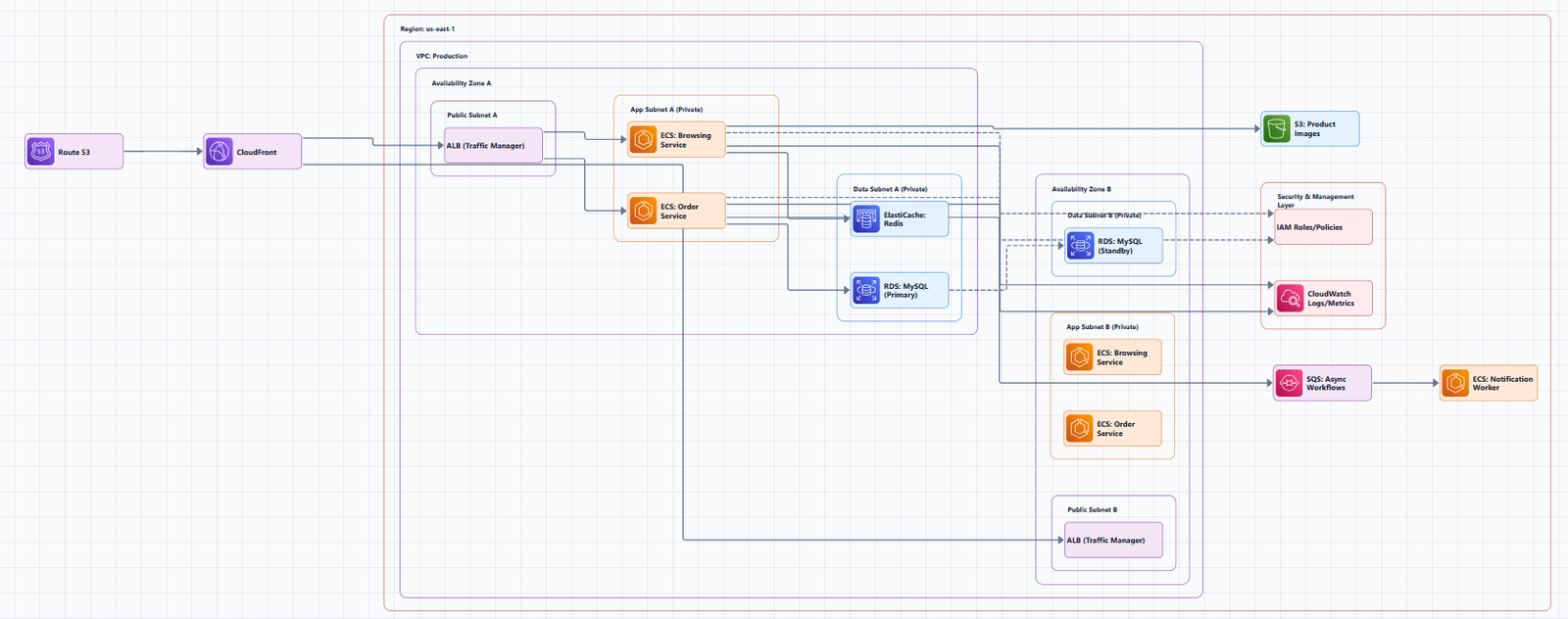
AWS and Azure continuously update their icon sets. AWS releases quarterly updates, while Azure added 13 new icons in November 2025 alone. Staying current ensures your diagrams reflect the latest services and visual standards.
Sourcing Official AWS and Azure Icons
AWS Architecture Icons
The official AWS Architecture Icons are available for free download from the AWS Architecture Center. You can also find them in a well-organized GitHub repository maintained by AWS, which contains the latest icons (February 2025 release) in a clear, accessible structure. The icons are provided in formats like SVG and PNG, suitable for various tools and use cases. AWS also provides a comprehensive icon pack for Mermaid.js, containing over 855 AWS service icons.
Azure Architecture Icons
Microsoft provides the official collection of Azure architecture icons through the Azure Architecture Center. This page is the definitive source for Azure product icons and is regularly updated; for instance, it added 13 new icons in November 2025. The icons are available for download and are designed to help you build custom architecture diagrams. Community projects also package these icons for specific tools like draw.io.
Tools for Creating Diagrams with Official Icons
draw.io (diagrams.net)
draw.io is a powerful, free, and open-source diagramming tool with excellent support for official cloud icons.
How to access AWS and Azure icons in draw.io:
- Open draw.io: Go to diagrams.net or open the desktop app.
- Enable the shape libraries: In the shape panel on the left, click "More Shapes" at the bottom.
- Select the libraries: In the "Networking" section, check the boxes for the relevant AWS and Azure libraries. draw.io contains a large number of shape libraries. For AWS, you can find libraries from 2017 onwards. For Azure, you can find libraries for VMs, Storage, and more. You can also enable the AWS 3D library for isometric shapes.
- Use the icons: The selected shapes will appear in your panel, ready to drag and drop onto your canvas.
Additional resources:
Lucidchart
Lucidchart is a popular commercial diagramming tool that also offers extensive shape libraries for AWS and Azure. These are built-in and can be accessed directly from the shape menu when creating a new diagram.
AI Line Studio: The Prompt-First Alternative
For teams that want to move beyond manual drag-and-drop, AI Line Studio offers a fundamentally different approach. It generates accurate, enterprise-ready cloud architecture diagrams in 15 to 20 seconds from a simple text description.
- How it works: You describe your system in plain language (e.g., "a web app on AWS with an RDS database and a CloudFront CDN"). AI Line Studio interprets this and generates a structured, production-ready diagram.
- Official Icons: It uses a library of over 3,000 officially licensed icons across AWS, Azure, GCP, and OCI. You get the correct icons without having to search for or manually place them.
- Speed and Iteration: This prompt-first approach eliminates the manual effort of dragging, dropping, and aligning shapes. It makes iterating on designs as fast as editing a sentence.
Diagram-as-Code (PlantUML, Mermaid)
For teams that prefer to keep diagrams in version control, diagram-as-code tools are a powerful option. They allow you to define diagrams using a simple, text-based syntax.
- PlantUML: You can create cloud provider architecture diagrams using PlantUML syntax with official AWS and Azure service icons. The process involves declaring stencil icons, grouping them into VPC/region zones, and connecting them with arrow syntax.
- Mermaid: There is a complete AWS icon pack for Mermaid.js, containing 855+ AWS service icons.
Best Practices for Multi-Cloud Diagrams
When your architecture spans both AWS and Azure, consistency and clarity become even more critical.
- Use Provider-Specific Icons: Always use the official AWS icon for an AWS service and the official Azure icon for an Azure service. Mixing them is correct; using a generic shape for one is not. The Azure icon set maintains a consistent visual language across categories, which helps keep diagrams coherent.
- Group by Provider and Region: Visually separate AWS and Azure resources. A common approach is to draw a bounding box (or a "cloud" shape) around all resources belonging to a single provider. Within that, group resources by region (e.g.,
us-east-1for AWS,East USfor Azure). - Clearly Label Connections: When drawing lines that represent connections between clouds (e.g., a VPN or a direct connection), label them clearly. Use a distinct line style (e.g., dashed) and a descriptive label like "Site-to-Site VPN" or "Azure ExpressRoute".
- Show Traffic Flow: Use arrows to indicate the direction of data flow. This is especially important in multi-cloud setups to show which service is the primary entry point and how data moves between providers.
When to Use Each Approach
| Scenario | Recommended Tool | Why |
|---|---|---|
| Quick, one-off diagram | draw.io | Free, fast, no account required. |
| Team collaboration on a complex design | Lucidchart | Excellent real-time collaboration and version history. |
| Rapid iteration and prototyping | AI Line Studio | Generate a new version from a text prompt in seconds. |
| Version-controlled diagrams | PlantUML / Mermaid | Diagrams are text files that live in your Git repository. |
| Creating a polished, production-ready diagram | AI Line Studio | Generates a clean, structured diagram with official icons instantly. |
Common Mistakes to Avoid
- Using Generic Shapes: A diagram with generic "server" and "database" shapes is far less clear than one using official AWS or Azure icons.
- Mixing Icon Versions: Avoid using an old AWS icon (e.g., the classic "gear" icon) next to a new one (the current hexagonal icon). Stick to the latest set.
- Ignoring Update Cycles: AWS updates its icons quarterly, and Azure does so frequently. Make sure to refresh your icon libraries periodically.
- Overcomplicating the Diagram: A diagram with 50 services on it is unreadable. Focus on the core components and flows. Create multiple diagrams for different views if necessary.
The Bottom Line
Creating cloud architecture diagrams with official AWS and Azure icons is a straightforward process once you know where to find the icons and which tool to use. draw.io provides a powerful, free option, while Lucidchart offers robust team collaboration.
However, the most significant shift in diagramming is the move towards AI-powered generation. Tools like AI Line Studio eliminate the manual effort of drag-and-drop, allowing you to generate production-ready, icon-accurate diagrams from a simple text description in seconds. This speed enables rapid iteration and ensures your diagrams can keep pace with your evolving architecture.
Whether you choose to draw, code, or describe your diagrams, the key is to use official, up-to-date icons and apply clear, consistent visual principles. Your team, and your future self, will thank you.
Additional Resources
- AWS Architecture Icons, Official AWS icon download page
- Azure Icons - Azure Architecture Center, Official Azure icon collection
- draw.io, Free, open-source diagramming tool
- Lucidchart, Commercial diagramming tool with extensive shape libraries
- AI Line Studio, AI-powered cloud architecture diagram generator