
Draw.io AWS Architecture Diagram: Complete Guide to Creating Professional Cloud Diagrams
AWS architecture diagrams are essential for documenting cloud infrastructure, planning deployments, and communicating system designs. Draw.io (now also known as diagrams.net) is the most popular free tool for creating these diagrams, and for good reason, it provides official AWS icon libraries, templates, and a flexible canvas that works entirely in your browser.
This guide covers everything you need to know about creating AWS architecture diagrams in draw.io: enabling the right shape libraries, using templates, following best practices, and integrating with other tools.
Cloud Architecture
Create cloud architecture diagrams for AWS, Azure, GCP, and more. Design scalable infrastructure with professional cloud icons.
Complete guide to creating AWS architecture diagrams in Draw.io, enable AWS shapes, use templates, layout best practices, and integrations.
Click Cloud Architecture to open AI Line Studio and generate diagrams from natural language in seconds.
Why Draw.io for AWS Architecture Diagrams?
Draw.io is the go-to choice for AWS architecture diagrams because it's:
- Completely free, No registration, no subscriptions, no hidden costs. You don't need to register or sign up.
- Works offline and online, Use the web version at app.diagrams.net or the desktop app.
- Official AWS icons, Draw.io provides several years' worth of AWS icon (shape) libraries, including Amazon's 3D or isometric shapes.
- Multiple storage options, Store diagrams in Google Drive, OneDrive, Dropbox, or locally.
- Export flexibility, Export to PNG, SVG, PDF, XML, and more.
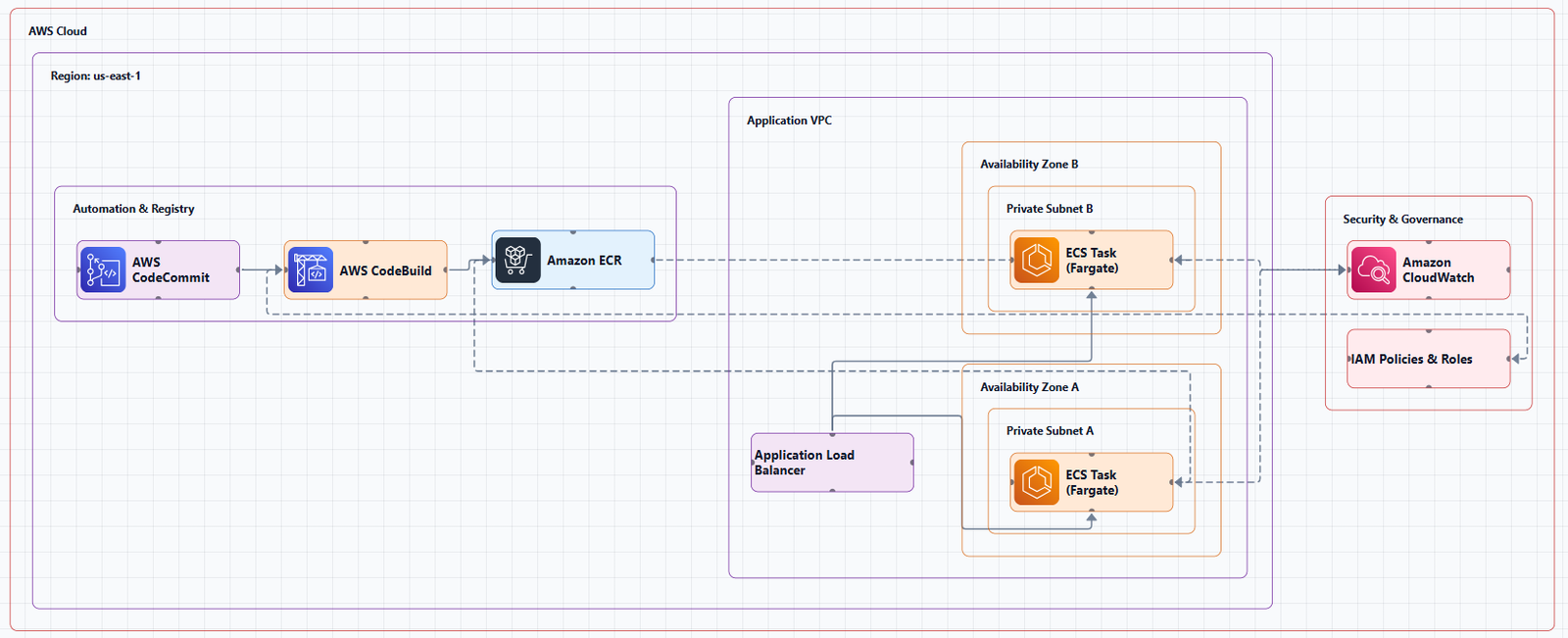
Getting Started: Enabling AWS Shape Libraries
Before you can start drawing, you need to enable the AWS shape libraries. Here's how:
Step 1: Open More Shapes
In the left panel, click More Shapes at the bottom. This opens the shape library selection dialog.
Step 2: Select AWS Libraries
Scroll down to the Networking section. Check the checkboxes next to the AWS libraries you want to use:
- AWS, Standard AWS service icons
- AWS 3D, Isometric AWS shapes for a more visual presentation style
- AWS 2026, The latest shape library updated with new shapes to match Amazon's recommended notation
Step 3: Apply
Click Apply to load the libraries. When you enable just one AWS shape library, you'll see a number of sub-categories appear in the left panel.
Finding Specific Shapes
Hover over a shape in the shape library to see a tooltip that tells you what it represents in AWS notation. You can also search for shapes by name in the shape library panel.
Using AWS Templates
If you don't want to start with a blank canvas, Draw.io provides a number of example AWS infrastructure templates.
How to Use Templates
- Click Arrange > Insert > Template to open the template library
- Expand the Cloud category on the left, then select AWS
- Click on the magnifying glass in the top right to see a larger preview
- Click Insert to add the template to your drawing canvas
You can then replace, move, and add more shapes, text, and connectors as needed.
Building Your Own AWS Architecture Diagram
Basic Workflow
- Drag and drop shapes from the shape libraries to the drawing canvas
- Click on shapes in the shape library to quickly add them, then reposition them
- Double-click on a shape and start typing to change its label text
- Press Shift+Enter to add a line break in a label
- Connect shapes by dragging from a shape's connection point to another shape
Working with AWS Groups
Draw.io includes a dedicated AWS / Groups shape library for indicating groupings of elements. Use these to show:
- AWS Cloud, The overall cloud boundary
- Region, Geographic region
- Availability Zone, Individual AZ
- VPC, Virtual Private Cloud
- Public/Private Subnets, Network segmentation
- Security Group, Security boundaries
Managing Shape Order
As AWS shapes are stacked on top of each other, with various rectangles showing groupings, you may need to modify the depth order in which shapes are rendered. When you add a new shape, it's dropped at the front of the stack.
To reorder shapes:
- Select a shape, then click To Front or To Back in the Arrange tab of the format panel on the right
- Alternatively, right-click on a shape and select the ordering option
Best Practices for Professional AWS Diagrams
Layout and Spacing
Following consistent layout guidelines makes diagrams readable and professional:
- 180px horizontal / 120px vertical gaps between service group containers
- Group padding: 30px on all sides; children start at y=40, x=20 minimum
- ~20px label height below each 48x48 icon; 60px gap between vertical tiers
- Standalone services 200px+ from top-left corner of Region/VPC groups
- Align all positions to grid multiples of 10
For diagrams with 13+ services, increase spacing to 220px horizontal and 160px vertical, with page size of at least 1600x1200.
Edge Routing
Clean edge routing is critical for readable diagrams:
- Use
edgeStyle=orthogonalEdgeStylefor right-angle connectors - For simple adjacent connections, let draw.io auto-route, do NOT set entry/exit points
- Leave 20px straight segment before target and after source for arrowheads
- Edges should leave PERPENDICULAR to the container face and route outward
Multiple edges from one service:
- Each edge MUST exit from a DIFFERENT side or a different point on the same side
- Example: Lambda → AgentCore (exitX=0.5;exitY=1 bottom), Lambda → Step Functions (exitX=1;exitY=0.5 right)
Icon Guidelines
- Use icons from draw.io's built-in
mxgraph.aws4stencil library, the official AWS Architecture Icons - Icon size: 78x78px for main services, 65x65px for secondary
- Use
sketch=0on all icons andstrokeColor=#ffffffon all AWS service icons - Font size: 12px for labels
Edge Labels
- Keep labels SHORT (1-2 words max). Use icon labels for detail, not edge labels
- On horizontal edges: position label ABOVE the line using
verticalAlign=bottom - On vertical edges: position label to the LEFT using
align=right - Always add
labelBackgroundColor=#F5F5F5so labels don't overlap lines
Page Setup
- Large canvas:
pageWidth="2400"pageHeight="1400"minimum - Set
dx="2800"dy="1600"for proper viewport - Always include a title block as the first element
Color Codes for AWS Service Categories
Each AWS service category uses official colors for resource icon shapes. All resource icon shapes must use strokeColor=#ffffff and gradientDirection=north.
| Category | fillColor | gradientColor | Example Services |
|---|---|---|---|
| Compute | #D05C17 | #F78E04 | EC2, ECS, EKS, Fargate |
| Storage | #277116 | #60A337 | S3, EBS, EFS, Glacier |
| Database | #3334B9 | #4D72F3 | RDS, DynamoDB, ElastiCache |
| Networking | #5A30B5 | #945DF2 | CloudFront, Route 53, ALB |
| Security | #C7131F | #F54749 | IAM, Cognito, WAF, Shield |
| Analytics | #5A30B5 | #945DF2 | Kinesis, Athena, Glue |
| Management | #BC1356 | #F54749 | CloudWatch, CloudFormation |
| Machine Learning | #116D5B | #4AB29A | SageMaker, Bedrock |
Advanced Tips and Tricks
Replacing Shapes
Drag a replacement shape from a shape library and hover over a shape in the diagram until you see the black replace shape arrow appear. Release, and the shape will be replaced. You may need to tweak the size and style afterwards.
Copying Styles and Sizes
Copy styles: Select a shape with the style you want. In the Style tab, click Copy Style. Select shapes to update, and click Paste Style.
Copy sizes: Select a shape with the size you want. In the Arrange tab, click Copy Size. Select shapes, then click Paste Size.
Using the Scratchpad
If you're regularly using the same shapes, for example, to create sub-sections of your diagram for backup or redundancy purposes, use the Scratchpad to store these shapes (along with groups of shapes, and even entire diagrams!).
Go to View > Scratchpad to open it. Note: the Scratchpad only stores shapes locally; these are not visible to other team members.
Integrations: Importing from Other Tools
Cloudcraft to Draw.io
Cloudcraft makes it easy to export to draw.io. In your Cloudcraft account, click Export > 2D export to draw.io. The diagram opens in a new tab, ready to save.
When exporting to draw.io, Cloudcraft may not use the most recent AWS shapes. It's easy to update your diagram to the newest AWS shapes yourself.
AWS Workload Discovery
Workload Discovery on AWS can export diagrams so you can further annotate them using draw.io. This is useful for building architecture diagrams using near real-time data.
AI-Powered Generation
You can now generate AWS architecture diagrams in draw.io format using AI. The aws-architecture-diagram-skill generates draw.io (.drawio) XML files representing AWS architecture diagrams.
Some tools, like the draw.io MCP server, enable AI assistants to build technical diagrams through natural language prompts.
Common Issues and Solutions
Shapes Not Rendering Correctly
If icons appear as empty squares:
- Verify you've enabled the correct AWS shape library
- Open any .drawio template in draw.io to confirm all icons render correctly
Shape Order Issues
If shapes are hidden behind others:
- Select the shape
- Use To Front or To Back in the Arrange tab
Edge Routing Problems
If edges cross through containers:
- Use explicit waypoints to route around intervening containers
- For non-adjacent service connections, always add explicit waypoints
Draw.io vs. Alternatives
| Feature | Draw.io | Lucidchart |
|---|---|---|
| Price | Free | $7.95+/month |
| AWS Icons | Official, up-to-date | Official |
| Real-time Collaboration | Limited (via integrations) | Full |
| Offline Mode | Yes (desktop app) | No |
| Template Library | Yes (built-in) | Yes |
| Export Formats | PNG, SVG, PDF, XML, HTML | PNG, PDF, Visio, SVG |
Draw.io is the best choice if you don't want to pay for premium features, despite its basic user interface. For teams needing real-time collaboration, Lucidchart is a strong alternative.
Summary
Draw.io is the most powerful free tool for creating AWS architecture diagrams. To get started:
- Enable the AWS shape libraries via More Shapes > Networking
- Use templates via Arrange > Insert > Template > Cloud > AWS
- Follow best practices for spacing, edge routing, and icon usage
- Export your diagrams to PNG, SVG, PDF, or draw.io format
For AI-powered generation, explore tools that can create draw.io diagrams from natural language prompts. For live infrastructure scanning, use integrations with Cloudcraft or AWS Workload Discovery.
If you're ready to start creating professional AWS architecture diagrams, try the AWS architecture diagram tool for templates and practical examples. For automated diagram generation, the AI cloud diagram generator turns AWS descriptions into visuals instantly. For end-to-end system architecture beyond AWS, the AI system architecture generator covers distributed and enterprise system designs.