
Draw.io Azure Architecture Diagram: Complete Guide for diagrams.net
Creating Azure architecture diagrams in draw.io (also known as diagrams.net) is a core skill for any Azure professional, but it can quickly become a chore. You spend more time hunting for the right icon and aligning connection points than you do thinking about the actual architecture. The result is often outdated before you finish.
This guide provides everything you need: from enabling the right shape libraries and using built-in templates, to importing custom icon sets, following best practices, and even automating diagram generation with AI and MCP servers.
Cloud Architecture
Create cloud architecture diagrams for AWS, Azure, GCP, and more. Design scalable infrastructure with professional cloud icons.
Complete guide to creating Azure architecture diagrams in draw.io, enable Azure shapes, templates, custom icons, best practices, and AI automation.
Click Cloud Architecture to open AI Line Studio and generate diagrams from natural language in seconds.
Getting Started: Enabling Azure Shapes in Draw.io
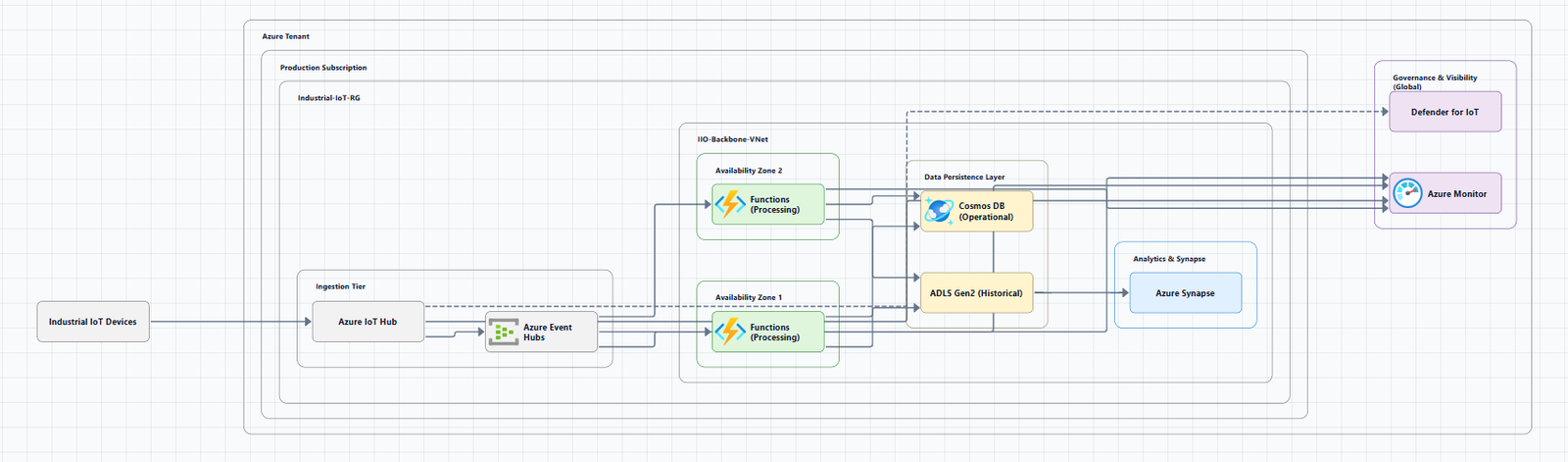
Draw.io includes a built-in Azure shape library, which is the fastest way to get started.
- Open draw.io or your preferred draw.io integration (Confluence, Google Drive, etc.).
- In the left panel, click More Shapes at the bottom.
- In the Networking section, check the Azure checkbox.
- Click Apply.
This loads the Azure shape library into the left panel, with shapes separated into categories like Compute, Networking, and Databases. These shapes are updated periodically by draw.io.
Using Built-in Azure Templates
Draw.io also provides pre-built Azure architecture templates to save you time.
- Click Arrange > Insert > Template to open the template library.
- Expand the Cloud section and select Azure.
- Browse the available Azure diagram templates and click Insert to add one to your canvas.
These templates are a great starting point for common Azure patterns like web applications, hub-spoke networks, and more.
Importing Custom Azure Icon Libraries
While draw.io's built-in Azure library is comprehensive, you may want to use a more up-to-date or specialized set of icons. You have a few options:
1. Official Microsoft Icons (SVG)
Microsoft provides an official collection of Azure architecture icons, updated regularly. The latest version as of this writing is V15.
- Download: Azure Public Service Icons (SVG)
- Usage: You can drag and drop these SVG files directly into your draw.io canvas. This gives you the most up-to-date icons.
2. Community Azure Icon Libraries (One-Click)
Community-maintained repositories provide ready-to-use Azure icon libraries for draw.io, with one-click links that load directly into diagrams.net.
Example: "azure-architecture-icons-for-drawio" Repository
- This repository provides a ready-to-use collection of Azure and Microsoft 365 architecture icons.
- To use: Download the
.xmllibrary files from the repository, then in draw.io, select File → Open Library from → Device.
3. One-Click Library Loader
Some repositories offer a one-click link that loads the library directly into your draw.io session.
Example: thesvg.org
- thesvg.org provides over 1,500 cloud architecture icons (including 626 Azure icons) as SVGs.
- These could be useful as a built-in icon library for draw.io.
Step-by-Step: Creating an Azure Architecture Diagram
- Start with a template or a blank canvas. If you're unsure where to begin, use a built-in Azure template (Arrange > Insert > Template > Cloud > Azure).
- Enable the Azure shape library (More Shapes > Networking > Azure).
- Drag and drop Azure services from the shape library onto your canvas.
- Group resources using rectangles or containers from the General shape library to represent regions, resource groups, or VNets. Send these containers to the back on the Arrange tab.
- Draw connectors by hovering over any shape and dragging from one of the four connection arrows to another shape.
- Label everything clearly. Double-click a shape to edit its text.
- Add a title, date, and author to your diagram.
Best Practices for Professional Azure Diagrams
1. Use Official Azure Icons
Always use the latest official Azure icons. Microsoft provides an official collection of Azure architecture icons, and draw.io's built-in library is a good starting point. Avoid generic shapes for Azure services.
2. Use Directional Arrows
Lines without arrows make relationships unclear. Always use arrows to show the direction of data flow.
3. Use Consistent Colors and Styling
Apply official Azure color schemes where possible. Use shape fill colors and outline styles consistently to visually indicate regions, types, and groupings of services.
4. Layer Your Diagrams
Don't try to show everything in one diagram. Create separate diagrams for different layers (e.g., network, compute, data). Start with basic shapes and add services layer by layer.
5. Use Thick, Colored Arrows
For better readability, use thick, colored arrows to represent traffic flow, matching the style used in Microsoft Learn documentation.
6. Include a Title and Metadata
Add a title, description, last updated date, author, and version to your diagram. This helps viewers understand its purpose and freshness.
7. Keep It Simple
If your diagram has more than 15 to 20 nodes, it's too complex. Break it down into smaller, more focused diagrams.
8. Version Control
Draw.io files are XML-based. Store them in a version control system like Git to track changes over time.
Advanced Techniques: AI and Automation
1. AI-Powered Diagram Generation
You can use AI to generate draw.io diagrams from natural language descriptions.
GenAI-DrawIO-Creator
- A Next.js web application that integrates AI capabilities with draw.io diagrams.
- You can create, modify, and enhance diagrams through natural language commands.
- Prompt example: "Generate a Azure architecture diagram with Azure icons. In this diagram, users connect to a frontend hosted on an instance".
2. MCP Servers for AI Assistants
Model Context Protocol (MCP) servers act as plugins for AI assistants like GitHub Copilot or Claude, enabling them to generate and edit draw.io diagrams.
Azure-DrawIO-MCP
- Generates editable Azure architecture diagrams as
.drawiofiles using an MCP server. - Uses official Azure icons from Draw.io's Azure2 SVG library.
- Supports 100+ Azure resource types and auto-layouts resources.
- Once configured, you can simply ask your AI assistant to "draw me an Azure architecture diagram."
Draw.io MCP Diagramming Skill
- A skill that helps create and edit architecture diagrams using the Draw.io MCP tool.
- Provides reliable Azure and AWS icon rendering guidance and troubleshooting.
- Includes visual guardrails to keep diagrams readable.
3. Automated Diagram Generation from Live Azure
You can also generate draw.io diagrams directly from your Azure environment.
CloudNetDraw
- A Python tool that automatically discovers Azure virtual network infrastructures and generates Draw.io visual diagrams from topology data.
- Open the generated
network_hld.drawiofile with Draw.io Desktop or the web version.
AZVerify (Sketch-to-Diagram)
- A tool from Azure that converts a rough sketch or text description into a professional Draw.io Azure architecture diagram.
- Also supports generating modular Bicep templates from a Draw.io diagram.
4. Animated Traffic Flows
You can add animated traffic flows to your draw.io diagrams to make them more engaging for presentations. This can be automated using agent skills, with rules to animate the path being discussed while keeping supporting relationships static.
Summary
Creating Azure architecture diagrams in draw.io is a powerful and accessible skill. By leveraging built-in templates, official icon libraries, and best practices, you can create professional diagrams that clearly communicate your Azure designs. For teams looking to scale, AI-powered tools and MCP servers can automate the process, ensuring diagrams stay accurate and up-to-date.
Key Takeaways:
- Enable Azure shapes via More Shapes > Networking > Azure.
- Use built-in templates via Arrange > Insert > Template > Cloud > Azure.
- Import official icons from the Azure Architecture Center or community repositories.
- Follow best practices: Use official icons, directional arrows, consistent colors, and layer your diagrams.
- Automate with AI: Use tools like GenAI-DrawIO-Creator or MCP servers to generate diagrams from natural language.
To get started creating your own Azure architecture diagrams, explore the Azure architecture diagram tool for AI-powered generation and editable templates. For automated diagram generation, try the AI cloud diagram generator to turn an Azure description into a visual instantly. For complete system architecture beyond Azure, the AI system architecture generator covers distributed and enterprise system designs.