
Google Cloud Architecture Diagramming Tool: Which One Actually Works in 2026?
Architecture diagrams are the blueprints your team uses to build, operate, and debug Google Cloud infrastructure. Choose the wrong tool, and your diagrams become outdated the moment you save them. Choose the right one, and you have a living artifact that actually helps people understand what's running and why.
After years of designing GCP workloads, from three-tier web apps to global data pipelines, I've tested every category of diagramming tool. Here's what actually works in 2026 and why the answer depends on what you're trying to do.
Cloud Architecture
Create cloud architecture diagrams for AWS, Azure, GCP, and more. Design scalable infrastructure with professional cloud icons.
2026 comparison of Google Cloud architecture diagramming tools, static canvas, AI-assisted generators, diagrams-as-code, and live discovery for GCP workloads.
Click Cloud Architecture to open AI Line Studio and generate diagrams from natural language in seconds.
The Three Jobs of a GCP Diagramming Tool
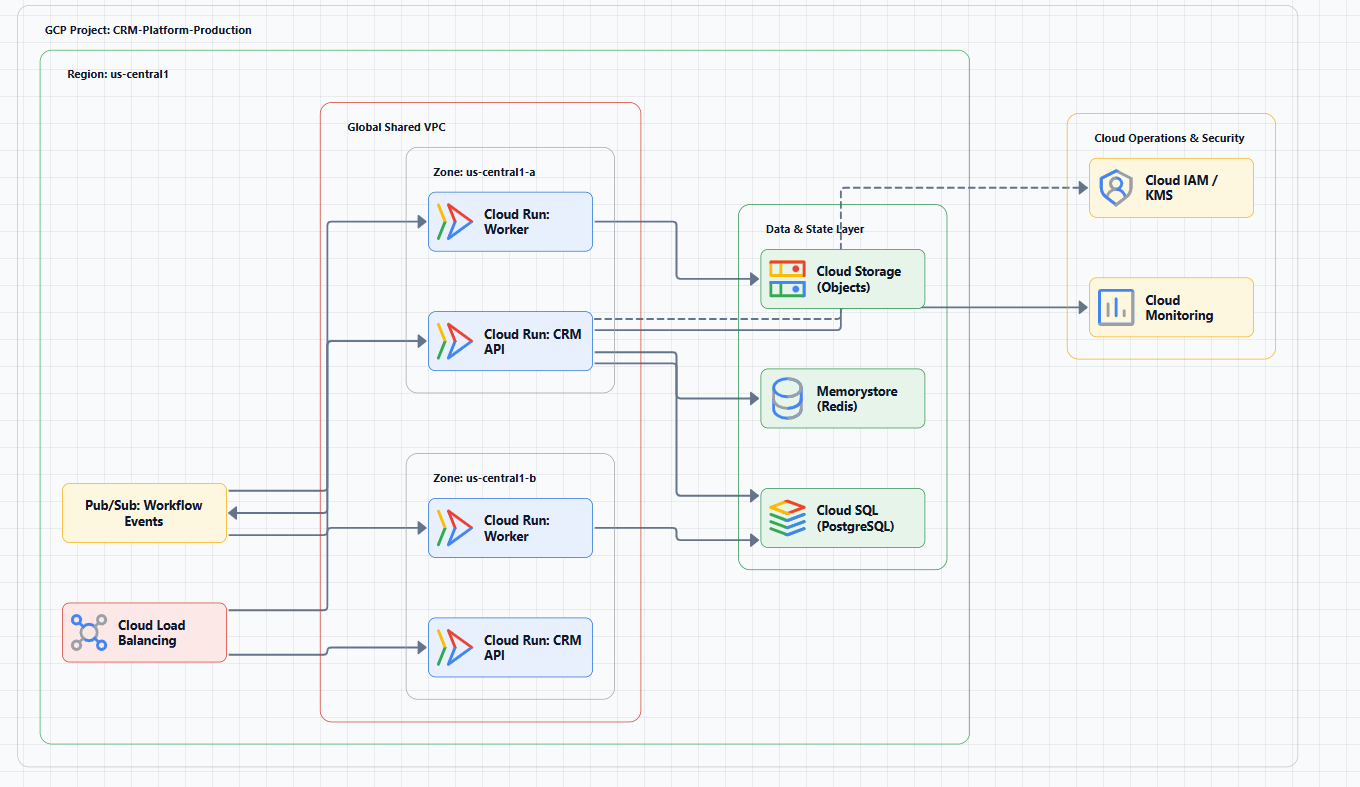
Before evaluating any tool, understand what job you're hiring it to do. Most teams pick the wrong tool because they confuse these categories:
| Category | What It Does | When You Need It |
|---|---|---|
| Static diagramming | Manual canvas for design and documentation | Planning, design reviews, stakeholder presentations |
| AI-assisted generation | Text prompts → structured diagrams | Rapid prototyping, iteration, documentation at speed |
| Live discovery | Scans your GCP account → auto-generates | Keeping diagrams current, operational troubleshooting |
A tool that excels at one job fails at the others. No single tool does all three well.
Static Diagramming Tools: The Manual Canvas
These are the traditional tools where you drag, drop, and connect shapes manually. They're great for design intent, what you plan to build, but terrible at staying current.
diagrams.net (draw.io), Free
Diagrams.net remains the default choice for most engineering teams. It's fast, free, and good enough for serious architecture work. Built-in GCP shape libraries cover most services, and the low friction means engineers actually use it.
The catch: It's entirely manual. Your diagram is outdated the moment your infrastructure changes. No collaboration features worth mentioning.
Best for: One-off diagrams, design docs, RFCs, and anything that doesn't need frequent updates.
Lucidchart, $7.95+/month
Lucidchart adds real-time collaboration and polished presentation quality on top of a similar canvas experience. The GCP icon library is comprehensive, and the auto-layout tools save time on complex diagrams.
The catch: Still manual. You're paying for collaboration and polish, not accuracy. Diagrams drift just as fast as draw.io.
Best for: Team design sessions, client-facing deliverables, and environments where presentation quality matters.
Miro, Freemium / $8+/month
Miro is a whiteboard first, diagramming tool second. It's excellent for architecture workshops and brainstorming sessions.
The catch: Not built for disciplined architecture documentation. Shapes drift, connections break, and there's no version control worth mentioning.
Best for: Workshops, brainstorming, and early-stage design exploration.
AI-Assisted Diagram Generators: The New Standard
This category is where the market is moving. Instead of dragging shapes, you describe your architecture in plain language and the tool generates the diagram.
AI Line Studio
AI Line Studio takes a fundamentally different approach from traditional canvas-first tools. The primary input is natural language, not drag-and-drop. You describe a system, "a 3-tier web app on GCP with Cloud Run frontend, GKE backend, and Cloud SQL", and the tool generates a structured diagram from that description, typically in 15 to 20 seconds.
Key capabilities:
- Natural-language-to-diagram generation (text prompt in, diagram out)
- 3,000+ officially licensed icons across major cloud providers, AWS, Azure, GCP, and OCI
- Animated diagrams (not just static images), built for demos, training material, and investor/stakeholder presentations
- Supports architecture diagrams, AI/ML pipeline diagrams, DevOps workflows, and general concept/flow diagrams
- Multi-format export: PNG, GIF, and MP4, plus shareable documentation links
- Enterprise-grade collaboration and security features for team use
Where it genuinely helps: If you're iterating on architecture during a design session, the speed matters. You can describe a change, see the diagram, refine the description, and have an updated visual in under a minute. For documentation workflows where you need to generate multiple diagrams quickly, the prompt-first approach eliminates the friction of manual placement. You can get started with the Google Cloud architecture diagramming tool and explore how AI converts prompts into editable diagrams for production workloads with the AI cloud diagram generator.
The honest limitation: It's an early-stage product with a smaller install base, less third-party integration coverage, and fewer battle-tested enterprise deployments than long-established tools like Lucidchart. It's not a general-purpose diagramming tool, if you need org charts, mind maps, or non-technical diagrams, a broader tool is a better fit. And as with any AI-generated output, complex or ambiguous system descriptions may need manual cleanup. It's not a zero-review tool for mission-critical documentation.
Best for: Rapid prototyping, design iteration, creating diagrams for presentations and demos, any workflow where speed matters more than pixel-perfect control.
Visual Paradigm AI Cloud Architecture Studio
Visual Paradigm's AI tool generates Google Cloud diagrams from natural language prompts. You describe your infrastructure, select an architecture goal (High Availability, Enterprise Grade, Low Cost), and the AI renders a professional diagram with official GCP icons. It also asks clarifying questions, "Would you like to include Cloud Armor and Identity-Aware Proxy?", and supports iterative refinement via conversation.
The catch: It's part of a broader ecosystem, which means more features but potentially more complexity. Direct AI generation for GCP isn't available in all Visual Paradigm products.
Best for: Teams already using Visual Paradigm, or those wanting a more structured AI-assisted workflow with strategy-based design.
MockFlow IdeaBoard
MockFlow's AI GCP diagram generator recognizes 40+ GCP services natively, maps them to official icons, and organizes them into VPC networks with Google's four-color brand system. You describe your architecture in plain text, and AI produces the diagram with correct icons, VPC groupings, and labeled connections.
The catch: You connect your own Claude or ChatGPT API key, generation runs on your AI account. This means no credit limits but also no built-in AI credits.
Best for: Teams that already have AI API access and want to avoid subscription costs.
Code-First Tools: Diagrams as Code
For teams that treat infrastructure as code, diagrams as code is a natural extension.
Mermaid.js, Free
Mermaid renders diagrams from text in your README. GitHub, GitLab, Notion, and Slack all render Mermaid natively.
The catch: Complex GCP architectures become unreadable quickly. Try representing a multi-account VPC peering setup with subnets, route tables, and transit gateways in Mermaid, it's possible, but you'll hate yourself.
Best for: Simple diagrams, documentation-as-code workflows, anything that lives in a README.
PlantUML, Free
PlantUML offers more control than Mermaid and supports GCP icon macros. It's a better fit for complex architectures but requires more setup.
Best for: Teams with strict documentation-as-code requirements and tolerance for steeper learning curves.
Live Discovery Tools: Always-Accurate Diagrams
These tools connect to your GCP account and auto-generate diagrams from live metadata. They're the only category that stays current without manual effort.
Google Cloud Application Design Center (ADC)
Google's own tool, currently in public preview. ADC creates architectures based on natural language prompts and allows users to modify and configure elements. It also generates Terraform files that provision the architecture and supports deployment and versioning.
The catch: Focused on GCP architecture, but currently doesn't allow downloading diagram images, you can only capture screenshots. Pricing hasn't been announced.
Best for: Teams that want to go from diagram to deployed infrastructure in one workflow, once ADC reaches general availability.
Lucidscale
Lucidscale auto-generates interactive diagrams from AWS, Azure, and GCP metadata. It lets you customize diagrams using rules and layout settings.
The catch: It's part of Lucid's ecosystem, which means a subscription. And auto-generated diagrams are useful for inventory but less helpful for design intent.
Best for: Architecture reviews, stakeholder communication, and keeping an inventory of what's actually running.
Cloudockit
Cloudockit generates documentation bundles and editable exports from live cloud environments. It's particularly strong for audits, compliance, and onboarding new architects.
The catch: Documentation-heavy rather than design-heavy. Less useful for planning new architectures.
Best for: Documentation-heavy environments, compliance, and audit requirements.
Decision Framework: Which Tool Should You Use?
| Your Primary Need | Recommended Tool | Why |
|---|---|---|
| Free manual diagrams | diagrams.net | Fast, free, good enough |
| Team collaboration on designs | Lucidchart | Polished reviews, real-time editing |
| Rapid prototyping and iteration | AI Line Studio | 15-second generation from plain language |
| Structured AI-assisted design | Visual Paradigm | Strategy-based generation, clarifying questions |
| Diagrams-as-code in documentation | Mermaid.js | Native rendering everywhere |
| Whiteboarding and workshops | Miro | Best for brainstorming sessions |
| Live production visualization | Lucidscale / Cloudockit | Auto-generated from live data |
| From diagram to deployed infra | Google ADC | Generates Terraform, preview only |
When NOT to Use Each Tool
Don't use diagrams.net if you need diagrams that stay current. Manual updates don't happen.
Don't use Lucidchart if you're on a tight budget or your team doesn't need real-time collaboration.
Don't use AI Line Studio for mission-critical documentation that requires zero review, or for non-technical diagram types like org charts or mind maps. It's built for cloud/system/AI architecture, not general-purpose diagramming.
Don't use Mermaid for complex GCP architectures with VPC peering, multiple subnets, and transit gateways. The syntax becomes unmanageable.
Don't use Miro for disciplined architecture documentation. It's a whiteboard, not a documentation tool.
Don't use live discovery tools for design intent. They show what's running, not what you plan to build.
Common Implementation Mistakes
Mistake 1: Using a static tool for operational visibility. Manual diagrams can't stay current. If you need to know what's actually running, use a live discovery tool.
Mistake 2: Using a live discovery tool for design. Auto-generated diagrams show your current state, not your intended architecture. Use static or AI-assisted tools for planning.
Mistake 3: Not reviewing AI-generated output. AI-assisted tools can generate diagrams quickly, but they're not infallible. Complex or ambiguous descriptions may produce incorrect relationships. Review before sharing.
Mistake 4: Choosing based on features rather than workflow. The best tool is the one your team will actually use. A feature-rich tool that's too complex will sit unused.
External Resources
- Google Cloud Architecture Framework, comprehensive guidance for designing secure, reliable, cost-efficient GCP architectures
- Google Cloud Architecture Center, reference architectures, diagrams, and best practices
- Google Cloud Icons, official GCP icon set for use in any design tool
- GCP Networking Best Practices, networking security and connectivity guidance
Final Thoughts
The right Google Cloud architecture diagramming tool depends entirely on what you need the diagram to do. For design and planning, static tools like diagrams.net or AI-assisted tools like AI Line Studio are the right fit. For documentation that stays current, live discovery tools are non-negotiable. For rapid iteration, AI generation is transformative.
Most teams need at least two tools, one for design and one for documentation. Choose based on your actual workflow, not the feature list. And remember: a diagram that's six months old is worse than no diagram at all.