
Google Cloud Code: The Complete Guide to Cloud-Native Development in Your IDE
Cloud Code is the difference between wrestling with Kubernetes YAML for hours and shipping code in minutes. After years of developing cloud-native applications on Google Cloud, I've seen teams waste countless hours context-switching between IDEs, terminals, and the Cloud Console. Cloud Code eliminates that friction.
This guide covers everything you need to know about Google Cloud Code, what it is, how to set it up, and how to use it for production-grade development on GKE, Cloud Run, and beyond.
Cloud Architecture
Create cloud architecture diagrams for AWS, Azure, GCP, and more. Design scalable infrastructure with professional cloud icons.
Complete guide to Google Cloud Code for VS Code, JetBrains, and Cloud Shell, Gemini Code Assist, GKE, Cloud Run, Skaffold workflows, YAML support, and cloud-native development best practices.
Click Cloud Architecture to open AI Line Studio and generate diagrams from natural language in seconds.
What Is Google Cloud Code?
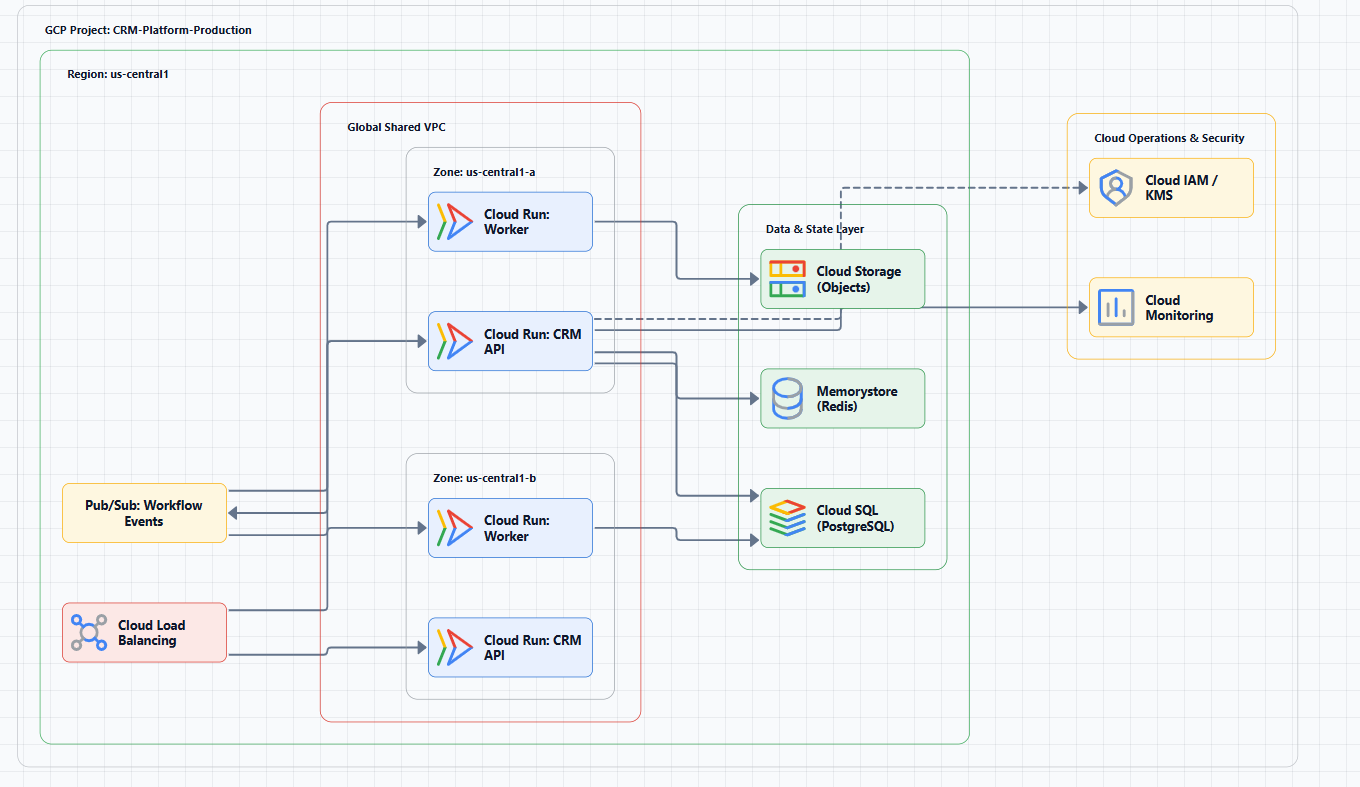
Cloud Code is a free IDE extension from Google that integrates Google Cloud services directly into your development environment. Instead of switching between your IDE, the Cloud Console, documentation, and logs, you stay in one place.
What it does for you:
- Brings GKE and Cloud Run development into VS Code and JetBrains IDEs
- Provides AI-powered assistance through Gemini Code Assist
- Eliminates context switching with built-in explorers and tooling
- Streamlines the full development cycle, from creating an application from a template to monitoring deployed resources
Cloud Code works with any cloud platform but offers a simplified, enhanced experience for Google Cloud, making it easy to create clusters hosted on Google Cloud and integrate with Cloud Source Repositories, Cloud Storage, and Cloud client libraries.
Supported IDEs and Languages
IDEs
- Visual Studio Code, full support
- IntelliJ IDEA (Ultimate and Community) and other JetBrains IDEs, including PyCharm, GoLand, WebStorm, and CLion
- Android Studio, limited support via Cloud Code for IntelliJ
- Cloud Shell Editor, Cloud Code is available by default
Languages
- Go
- Java
- Node.js
- Python
- .NET Core
Important language limitation: Java is supported for all Cloud Code features in IntelliJ. Node.js, Go, and Python are supported only for Kubernetes features in IntelliJ.
Key Features and Capabilities
Cloud Code provides IDE support for the entire development cycle of Kubernetes and Cloud Run applications. Here's what it actually does.
1. AI-Powered Assistance with Gemini Code Assist
Gemini Code Assist is integrated with Cloud Code, bringing AI assistance directly to your IDE.
What it can do:
- Complete code while you write
- Generate code blocks based on comments
- Function as a chat assistant right in your IDE
- Help you solve code problems
- Provide inline suggestions as you code
Gemini Code Assist is available in VS Code, Cloud Workstations, and JetBrains IDEs. It is not automatically enabled, you need to connect to Google Cloud, select a project, and enable the necessary IAM permissions.
2. GKE Development
Cloud Code's GKE support lets you create and run new applications, work with existing applications, customize YAML with intelligent authoring support, and run on any GKE cluster.
- Create Kubernetes clusters in GKE directly from the IDE
- Kubernetes resource inspection and browsing
- Stream and view logs
- Run and debug applications locally and on GKE clusters
3. Cloud Run and Cloud Functions Support
Cloud Code supports Cloud Run and Cloud Run functions, allowing you to develop, debug, and deploy serverless applications without leaving your IDE.
- Deploy to Cloud Run directly from the IDE
- Debug Cloud Run services using Skaffold
- Monitor deployed resources
4. Remote Debugging
Cloud Code leverages Skaffold to emulate a local debugging experience in your IDE. Place breakpoints in your code, and when a breakpoint is triggered, you can step through execution, inspect variables, and correlate logs from the running container.
5. YAML Authoring Support
Cloud Code provides inline documentation, snippets, completions, and schema validation for Kubernetes YAML, making authoring and troubleshooting significantly faster.
6. Compute Engine Support
Cloud Code includes a Compute Engine explorer that makes it easy to see relevant VMs in your GCP project and inspect the information needed to work with them from the IDE.
7. API and Client Library Management
Cloud Code can help add Cloud client libraries for Google APIs to your project, surface examples for each API, and set default application credentials automatically after sign-in.
8. Additional Features
| Feature | VS Code | IntelliJ | Cloud Shell |
|---|---|---|---|
| Run-ready, debuggable sample apps | ✓ | ✓ | ✓ |
| Custom template repository import | ✓ | ✓ | ✓ |
| Multiple run configurations | ✓ | ✓ | ✓ |
| Continuous build and run | ✓ | ✓ | ✓ |
| Debug support for Kubernetes apps | ✓ | ✓ | ✓ |
| Skaffold configuration modification | ✓ | ✓ | ✓ |
| Advanced Kubernetes YAML support | ✓ | ✓ | ✓ |
| Kubernetes resource inspection | ✓ | ✓ | ✓ |
| Stream logs | ✓ | ✓ | ✓ |
| Cloud Build support | ✓ | ✓ | ✓ |
| Secret Manager support | ✓ | ✓ | - |
| Cloud Storage support | ✓ | ✓ | - |
Based on Cloud Code documentation
How Cloud Code Works Under the Hood
Cloud Code integrates with Google's command-line container tools, Skaffold, minikube, and kubectl, to provide continuous local feedback about your project as you build, modify, run, and deploy applications locally or in the cloud.
Skaffold integration is the key. Skaffold handles the build, push, and deploy workflow. Cloud Code uses Skaffold to:
- Build container images
- Push them to Artifact Registry
- Deploy to GKE or Cloud Run
- Enable hot reloading of changes
- Provide remote debugging capabilities
This gives you a tighter inner-loop development experience: edit code, test changes, and iterate without repeated manual build and deploy steps.
Getting Started with Cloud Code
Installation
- For VS Code: install the Cloud Code extension from the VS Code marketplace
- For IntelliJ: install the Cloud Code plugin from the JetBrains plugin repository
- For Cloud Shell: Cloud Code is available by default in the Cloud Shell Editor
First Steps
- Sign in to Google Cloud in your IDE
- Select a Google Cloud project
- Enable necessary IAM permissions
- Create a new application from a sample template or import an existing project
Sample Applications
Cloud Code comes with run-ready sample applications that you can use to test features and learn the workflow. The cloud-code-samples GitHub repository contains examples for testing Cloud Code functionality.
When Cloud Code Shines
When you're developing Kubernetes applications. YAML authoring support, debugging, and Skaffold integration make it an efficient GKE workflow.
When you're building Cloud Run services. Deploying, debugging, and monitoring from the IDE reduces context switching substantially.
When you're working with multiple Google Cloud services. API library management, Secret Manager support, and Cloud Storage integration reduce setup friction.
When you're on a team. Cloud Code integrates with Cloud Source Repositories and Cloud Build to fit shared delivery workflows.
When Cloud Code Might Not Be the Right Fit
If you're not using Google Cloud. Cloud Code works with any cloud platform, but its strongest experience is clearly Google Cloud-specific.
If you prefer the terminal. Cloud Code layers IDE workflows on top of tools like kubectl, gcloud, and skaffold; it does not replace them.
If you're not using Kubernetes or Cloud Run. Its value is highest when GKE, Cloud Run, and related cloud-native workflows are central to development.
Common Mistakes When Using Cloud Code
Mistake 1: Not enabling Gemini Code Assist. Many teams install Cloud Code and miss the IAM and project setup required for AI assistance.
Mistake 2: Ignoring language limitations. IntelliJ support differs by language, especially outside Java.
Mistake 3: Not using Skaffold hot reload. Rebuilding manually throws away one of Cloud Code's biggest productivity wins.
Mistake 4: Underutilizing explorers. Built-in Kubernetes and Cloud Run explorers surface resource state without constant CLI hopping.
Mistake 5: Not checking updates. Cloud Code evolves regularly, so stale plugins often mean missed features and fixes.
Tools for Visualizing Cloud Code Architectures
As you develop cloud-native applications with Cloud Code, you'll often need to visualize system boundaries, deployment paths, and supporting cloud services.
AI Line Studio generates Google Cloud architecture diagrams from natural language descriptions in 15-20 seconds, supporting 3,000+ officially licensed Google Cloud icons. It's prompt-first, describe your architecture and get a structured diagram, rather than dragging and dropping shapes.
For rapid iteration during design sessions, the AI cloud diagram generator lets you refine descriptions and regenerate instantly. You can also build production-ready diagrams with the AI architecture diagram builder and reuse them as templates. The Google Cloud Code architecture diagrams workspace provides editable templates with official GCP icons for common deployment patterns, while the AI system architecture generator creates complete Google Cloud system architecture diagrams for enterprise, AI, microservices, and cloud-native workloads.
The tool exports animated diagrams (GIF, MP4) for presentations and training material, which most static-only tools don't support. However, it's an early-stage product with a smaller install base, and complex descriptions may require manual cleanup, it's not a zero-review tool for mission-critical documentation.
External Resources
- Cloud Code Official Documentation, complete documentation for Cloud Code across all supported IDEs
- Cloud Code for VS Code Quickstart, get started with Cloud Code in VS Code
- Cloud Code for IntelliJ Quickstart, get started with Cloud Code in IntelliJ
- Gemini Code Assist Documentation, AI-powered assistance within Cloud Code
- Skaffold Documentation, the build and deploy tool that powers Cloud Code
- cloud-code-samples GitHub Repository, sample applications for testing Cloud Code features
Final Thoughts
Google Cloud Code makes cloud-native development feel much closer to local development. It reduces context switching, adds AI-powered assistance, and streamlines the cycle from template creation to deployment monitoring.
The most value comes from using the full workflow together: Gemini Code Assist, resource explorers, Skaffold-driven inner-loop development, and strong YAML authoring support. Start with a sample app, learn the deployment path, and shape the IDE workflow around how your team actually ships software.