
How to Create Azure Architecture Diagrams: Components, Best Practices, and Tools
Creating Azure architecture diagrams is one of those tasks every cloud professional has to do, but nobody enjoys. You spend more time hunting for the right icon and aligning connection points than you do thinking about the actual architecture. The result is often outdated before you finish.
This guide covers everything you need to know about creating Azure architecture diagrams, from the core components and best practices, to the tools that actually make the process sustainable (including AI-powered generators that turn natural language into diagrams in seconds).
Cloud Architecture
Create cloud architecture diagrams for AWS, Azure, GCP, and more. Design scalable infrastructure with professional cloud icons.
Learn how to create Azure architecture diagrams, core components, Well-Architected best practices, AI generators, Draw.io, Visio, and Terraform tools.
Click Cloud Architecture to open AI Line Studio and generate diagrams from natural language in seconds.
What Is an Azure Architecture Diagram?
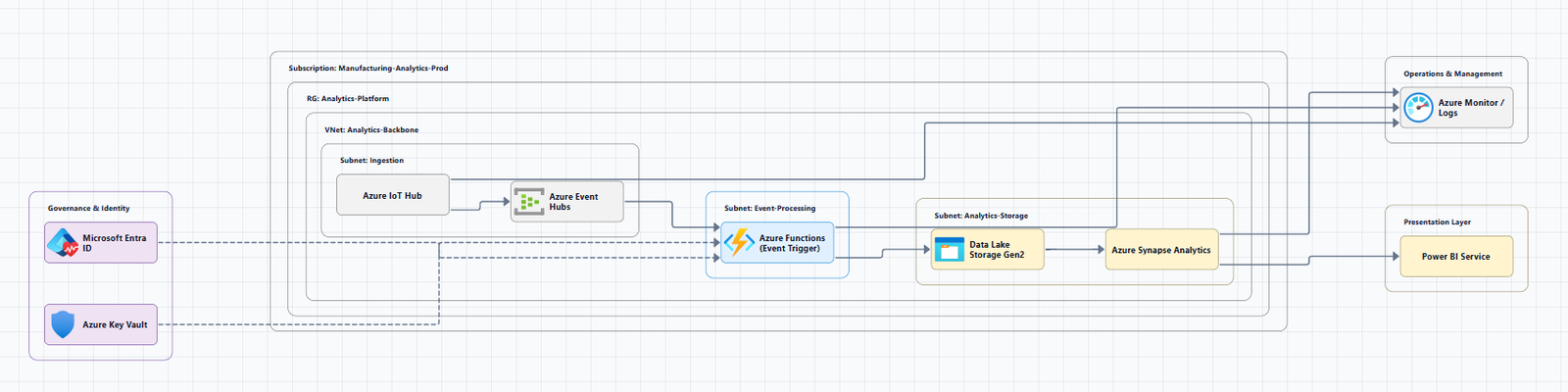
An Azure architecture diagram is a visual representation of a system built on Microsoft Azure. It shows how Azure services, Virtual Machines, App Service, Azure Kubernetes Service (AKS), SQL Database, storage accounts, networking components, and security controls, are organized and connected to support an application or workload.
At its core, a diagram answers fundamental questions:
- What services are involved? (e.g., a web app, a database, a load balancer)
- How do they relate? within a solution
- Where does data flow? between components
Architects often communicate through diagrams. Well-designed visuals are powerful tools that help implementers, security reviewers, and business stakeholders converge on a shared mental model, expose risks earlier, and reduce rework.
Core Azure Architecture Components
Every Azure diagram uses a common set of service categories. Understanding these is the first step to reading and creating diagrams.
Compute Services
Compute services provide the processing power for your applications:
| Service | Description |
|---|---|
| Azure Virtual Machines | IaaS virtual machines with full OS control |
| Azure App Service | PaaS for hosting web apps, REST APIs, and mobile backends |
| Azure Kubernetes Service (AKS) | Managed Kubernetes for container orchestration |
| Azure Functions | Serverless event-driven compute |
| Azure Container Instances | Serverless containers for simple workloads |
Storage Services
Storage services handle data persistence:
- Azure Blob Storage: Object storage for unstructured data
- Azure Files: Managed file shares
- Azure Disk Storage: Block storage for VMs
- Azure Data Lake Storage: Scalable data lake for analytics
Database Services
Database services manage structured and semi-structured data:
- Azure SQL Database: Managed relational database
- Azure Cosmos DB: Globally distributed NoSQL database
- Azure Database for PostgreSQL/MySQL: Managed open-source databases
- Azure Cache for Redis: In-memory caching
Networking Services
Networking services connect everything together:
- Azure Virtual Network (VNet): Your private network in the cloud
- Subnets: Segments of a VNet's IP address range
- Azure Load Balancer: Distributes traffic across VMs
- Application Gateway: Layer 7 load balancer with WAF
- Azure Front Door: Global load balancer and CDN
- Azure DNS: Domain name resolution
- VPN Gateway and ExpressRoute: Hybrid connectivity
Security and Management Services
Security and management services protect and monitor your infrastructure:
- Microsoft Entra ID (formerly Azure AD): Cloud-based identity and access management service
- Azure Key Vault: Secrets, keys, and certificate management
- Azure Monitor: Monitoring service that collects, analyzes, and acts on telemetry data
- Azure Security Center: Security posture management
- Azure Policy: Governance and compliance enforcement
Integration and Messaging Services
Integration services connect applications and systems:
- Azure API Management: API gateway and developer portal
- Azure Event Hubs: Real-time data streaming
- Azure Service Bus: Reliable cloud messaging
- Azure Logic Apps: Workflow automation
- Azure Event Grid: Event routing at scale
Azure Architecture Diagram Best Practices
The Azure Well-Architected Framework provides clear guidance on diagramming practices.
1. Use Standard Notations
Use widely recognized symbols, icons, and presentation conventions to ensure good readability and consistent interpretation across different audiences. Diagrams often show relationships between entities represented as lines; be consistent in how you use them.
2. Use Directional Arrows
Avoid lines without arrows, it's hard to know what the relationship is without direction. Avoid lines with double arrows, they imply a bidirectional dependency. Prefer using a single-ended arrow to represent the flow from the dependent (client) to the dependency (server).
3. Label Everything Clearly
Provide clear, accurate, and meaningful labels for each icon, grouping container, and relationship. Label lines when the relationships aren't immediately clear from context.
4. Maintain Consistency
Use standardized colors, casing, icons, icon sizes, line weights, line types, arrow heads, and border styles for similar elements. Apply the same taxonomy across every diagram in the solution set.
5. Be Accurate
While diagrams are abstractions, don't sacrifice accuracy for simplicity. For example, don't depict a PaaS service inside a subnet if it's actually accessed over a private endpoint. Inaccuracies in diagrams can lead to serious miscommunication and implementation delays.
6. Include Metadata
Ensure each diagram contains metadata that provides essential context about its purpose, scope, and significance. Include elements such as title, description, last updated date, author, version, and external references.
7. Use Official Icons and Service Names
Always use the latest official icons and naming conventions. Don't stretch or recolor brand shapes arbitrarily. Microsoft provides an official collection of Azure architecture icons.
Icon Usage Guidelines:
- Do: Use the icon to illustrate how products can work together. Include the product name somewhere close to the icon. Use the icons as they would appear within Azure.
- Don't: Don't crop, flip, or rotate icons. Don't distort or change icon shape in any way. Don't use Microsoft product icons to represent your product or service.
Microsoft permits the use of these icons in architectural diagrams, training materials, or documentation.
8. Layer, Don't Overload
Resist the urge to encode every subsystem in a single diagram. Provide progressive disclosure: a context diagram leads to a container diagram, which leads to focused component or sequence diagrams.
Tools for Creating Azure Architecture Diagrams
You have several options for creating Azure architecture diagrams, from traditional manual tools to AI-powered generators and infrastructure-as-code tools.
AI-Powered Diagram Generators
AI-powered tools are transforming how architects create diagrams. Instead of dragging boxes, you describe your architecture in natural language, and the tool generates a professional diagram in seconds.
Visual Paradigm AI Cloud Architecture Studio is an AI-powered Azure design tool that aligns your infrastructure with the Azure Well-Architected Framework. You describe your infrastructure in plain English, "I want to build a real-time food delivery app on Azure with AKS, managed SQL Database, and a Redis cache, protected by an Application Gateway", and the AI renders a professional diagram featuring official Azure service icons. It supports multi-cloud flexibility, allowing you to compare elastic setups across AWS, Azure, and GCP, and exports to high-quality SVG.
GenAI-DrawIO-Creator is a Next.js web application that integrates AI capabilities with draw.io diagrams. You can create, modify, and enhance diagrams through natural language commands. For example: "Generate an Azure architecture diagram with Azure icons. In this diagram, users connect to a frontend hosted on an instance". It supports 34+ shape libraries including AWS, GCP, Azure, and Kubernetes.
AI Line Studio takes a prompt-first approach, describe a system like "a web app on Azure with App Service, Azure SQL Database, and Azure Front Door" and it generates a structured diagram with official Azure icons in 15 to 20 seconds. The output supports PNG, GIF, and MP4 exports, plus shareable documentation links. For Azure-specific workflows, you can use the dedicated AI cloud diagram generator.
SketchMyInfra is a free AI tool that converts natural language descriptions into production-quality infrastructure diagrams using PlantUML. No signup required. Free tier: 5 diagrams/day without an account, more with a free login.
StackBuilder lets you describe your infrastructure in plain English and get a professional cloud architecture diagram in seconds. It supports AWS, Azure, GCP, Kubernetes, and multi-cloud, uses real provider icons, and you can refine it with follow-ups. Export to PNG, SVG, PDF, or draw.io. No signup required.
Manual Diagramming Tools
Draw.io (diagrams.net) is the most popular free option for Azure architecture diagrams. It includes a built-in Azure shape library. To enable Azure shapes: click More Shapes at the bottom of the left panel, in the Networking section, check the Azure checkbox, and click Apply. Several Azure diagram templates are available in the template library: click Arrange > Insert > Template, expand the Cloud section, and select Azure.
A ready-to-use collection of Azure and Microsoft 365 architecture icons for draw.io is available with one-click libraries that load directly into diagrams.net.
Microsoft Visio is the recommended tool for creating Azure architecture diagrams. Azure icons are provided as general-purpose SVG files that you can drag and drop into Visio. Each reference architecture in the Azure Architecture Center includes a descriptive article and a Visio download option.
ARCH App is a browser-based tool suited for DevOps engineers and cloud architects who need to quickly sketch out AWS, Azure, GCP, or on-premise network layouts without the overhead of heavier enterprise diagramming tools. Its zero-setup approach makes it ideal for rapid prototyping.
Grafly is a free browser-based diagramming tool. No account needed. Create flowcharts, generic diagrams, AWS architecture diagrams, GCP cloud diagrams, and more.
Infrastructure-as-Code Diagram Generators
These tools generate diagrams directly from your Terraform code, ensuring diagrams stay in sync with your actual infrastructure.
Azure Terraform Diagram is a VS Code extension that generates beautiful Microsoft Azure-style infrastructure diagrams from your Terraform projects automatically, with comprehensive DevOps insights including security analysis and cost estimation. Right-click on any folder in the VS Code Explorer and select "Generate Azure Infrastructure Diagram" to generate a diagram.
TerraVision automatically converts your Terraform code into professional-grade cloud architecture diagrams using the official AWS, GCP, and Azure icon sets. It's free and open source, supports multi-cloud (AWS full, GCP, and Azure core services), and generates interactive HTML output with clickable nodes, pan/zoom, search, and animated data flow.
Azure-DrawIO-MCP generates editable Draw.io diagrams for Azure architectures via MCP. It uses official Azure icons from Draw.io's Azure2 SVG library, supports 100+ Azure resource types, and auto-layouts resources left-to-right. Requires Python 3.10+ and VS Code with the Draw.io extension.
Official Azure Icons
The Azure Architecture Center provides an official collection of Azure architecture icons, including Azure product icons. The icons are provided as general-purpose SVG files. You can drag and drop these icons into many diagramming and drawing tools, including Visio.
Recent icon updates:
- November 2025: Added 13 new icons, including Azure Kubernetes Service (AKS) Network Policy
- August 2025: Added 10 new icons, including Azure Service Groups and Prometheus
- July 2026: Added over 10 new icons, including Azure DocumentDB, Azure Resiliency, AI Gateway, and Azure DDoS custom policies
Reference Architectures and Examples
The Azure Architecture Center provides a comprehensive collection of reference architectures for common workloads. You can browse all Azure architectures to find architecture diagrams and technology descriptions for reference architectures, real-world examples of cloud architectures, and solution ideas for common workloads on Azure.
Common reference architectures include:
- Hub-Spoke Network Topology: The hub virtual network acts as a central point of connectivity to many spoke virtual networks. This is the network topology recommended by the Cloud Adoption Framework for Azure.
- Azure Landing Zone: A scaled-out target architecture intended to help organizations operate successful cloud environments while maintaining best practices for security and governance.
- Event-Driven Microservices: Architecture diagrams and design decisions for SaaS multi-tenant, event-driven microservices, and AI RAG pattern applications on Azure.
- AI Workload Architecture: Architecture patterns and reference architectures to help you design, deploy, and govern AI workloads on Azure.
Community repositories also provide real-world inspired Azure and Kubernetes architecture diagrams. Each diagram is accompanied by a textual explanation with key attention points.
Common Mistakes to Avoid
Mistake 1: Outdated diagrams. The biggest problem with any tool is maintenance. Use an automated or AI tool that lets you regenerate in seconds.
Mistake 2: Using the wrong icons. Always use official Azure icons. Draw.io provides them built-in. AI tools like Visual Paradigm AI, AI Line Studio, and GenAI-DrawIO-Creator use official Azure icons automatically.
Mistake 3: No labels. Every icon should have a clear label. Don't assume readers will recognize an icon.
Mistake 4: No directional arrows. Lines without arrows make relationships unclear. Always show the flow of data.
Mistake 5: Overloading one diagram. If your diagram has more than 15 to 20 nodes, it's too complex. Split it into multiple diagrams at different abstraction levels.
Mistake 6: Ambiguous lines. Lines without arrows, or lines with double arrows, create confusion. Always use single-ended arrows to show direction.
The Pragmatic Workflow
Here's what I actually use for Azure architecture diagramming:
For rapid ideation and iteration: AI Line Studio or Visual Paradigm AI. Describe the system in 30 seconds, get a diagram in seconds. The speed makes it practical for exploring design options.
For editable, version-controllable diagrams: Azure-DrawIO-MCP or SketchMyInfra. Export Draw.io or PlantUML format and check it into Git alongside your infrastructure code.
For diagrams that need to stay accurate with Terraform: TerraVision or Azure Terraform Diagram. Generate diagrams directly from your infrastructure code. Run it in CI/CD to keep diagrams updated on every PR merge.
For final polish: Take the AI-generated diagram and refine it in Draw.io if needed. But increasingly, the AI output is good enough to use as-is.
Summary
Creating Azure architecture diagrams has never been easier or more varied. You have options at every price point and skill level:
| Method | Tools | Best For |
|---|---|---|
| AI-Powered | Visual Paradigm AI, AI Line Studio, GenAI-DrawIO-Creator, SketchMyInfra, StackBuilder | Speed, iteration, Azure Well-Architected alignment |
| Manual | Draw.io, Visio, ARCH App, Grafly | Quick sketches, presentations, full control |
| IaC | Azure Terraform Diagram, TerraVision, Azure-DrawIO-MCP | Always-accurate, automated diagrams from code |
Key takeaways:
- If you value speed and natural language input, AI Line Studio is the fastest path from description to diagram. Try the AI cloud diagram generator to see how quickly you can turn an Azure description into a visual.
- If you need Azure Well-Architected alignment, Visual Paradigm AI delivers enterprise-grade modeling.
- If you need editable diagrams with official Azure icons, Azure-DrawIO-MCP generates Draw.io files you can customize.
- If you use Terraform, Azure Terraform Diagram or TerraVision keep diagrams in sync with your infrastructure automatically.
- If you need a free, reliable manual tool, Draw.io remains the people's champion.
- If you need complete system architecture beyond Azure, the AI system architecture generator covers distributed and enterprise system designs.
Stop spending hours on diagrams that will be outdated next week. Start creating your Azure architectures in a way that actually keeps pace with your infrastructure.
To get started, explore the Azure architecture diagram tool for templates and practical examples.