
How to Draw AWS Architecture Diagrams: 2026 Tools & Best Practices
Drawing AWS architecture diagrams is one of those tasks every cloud team needs but nobody wants to maintain. You spend an hour in draw.io moving boxes around, and by the time you share it, someone has already changed the infrastructure.
AWS environments have evolved dramatically in recent years. What used to be a handful of EC2 instances and VPCs has turned into hundreds or thousands of interconnected resources across multiple accounts and regions. A diagram that's outdated by even a few weeks can become misleading, or worse, dangerous.
The good news: 2026 has transformed how you draw AWS architecture diagrams. You now have options at every price point and skill level, from free manual tools to AI-powered generators that turn natural language into professional diagrams in seconds.
This guide breaks down every approach available today, with honest pros and cons for each.
Cloud Architecture
Create cloud architecture diagrams for AWS, Azure, GCP, and more. Design scalable infrastructure with professional cloud icons.
Learn how to draw AWS architecture diagrams in 2026, manual tools, AI generators, live scanners, and best practices compared.
Click Cloud Architecture to open AI Line Studio and generate diagrams from natural language in seconds.
Quick Comparison: How to Draw AWS Architecture Diagrams
| Tool | Input Method | AWS Support | Key Differentiator | Starting Price |
|---|---|---|---|---|
| Draw.io (diagrams.net) | Manual drag-and-drop | Full AWS icon library | Completely free, no registration, works offline | Free |
| Lucidchart | Manual + AI assist | Full AWS (official icons) | Real-time collaboration + AWS import | $7.95+/mo |
| Visual Paradigm AI | Natural language + guided discovery | AWS, Azure, GCP, Alibaba, Oracle, Huawei | AI asks clarifying questions, Well-Architected aligned | Enterprise pricing |
| AI Line Studio | Natural language prompt | AWS, Azure, GCP, OCI | Animated diagrams from text in 15 to 20 seconds | Free tier |
| Cloudcraft | Live AWS scan + manual | AWS only | 3D isometric views + cost estimation | $49+/mo |
| Holori | Live AWS scan + manual | AWS, Azure, GCP | Daily sync + diff detection + cost dashboard | Paid |
| AWS Workload Discovery | Live AWS scan | AWS only | First-party AWS tool, self-hosted | Free |
| AWS Diagram MCP Server | Natural language (via AI) | AWS | 100% local operation, no data leaves your machine | Free |
| AWS Playboard | Drag-and-drop + AI | AWS | 100+ AWS icons, animated connections, AI generation | Free |
| Lunacy | Drag-and-drop | AWS icons | Completely free vector editor for commercial use | Free |
Method 1: Manual Drawing Tools
The traditional approach. Open a tool, drag boxes, draw arrows, label everything by hand.
- In the left panel, click More Shapes at the bottom
- Scroll to the Networking section
- Select the AWS library you want, then click Apply
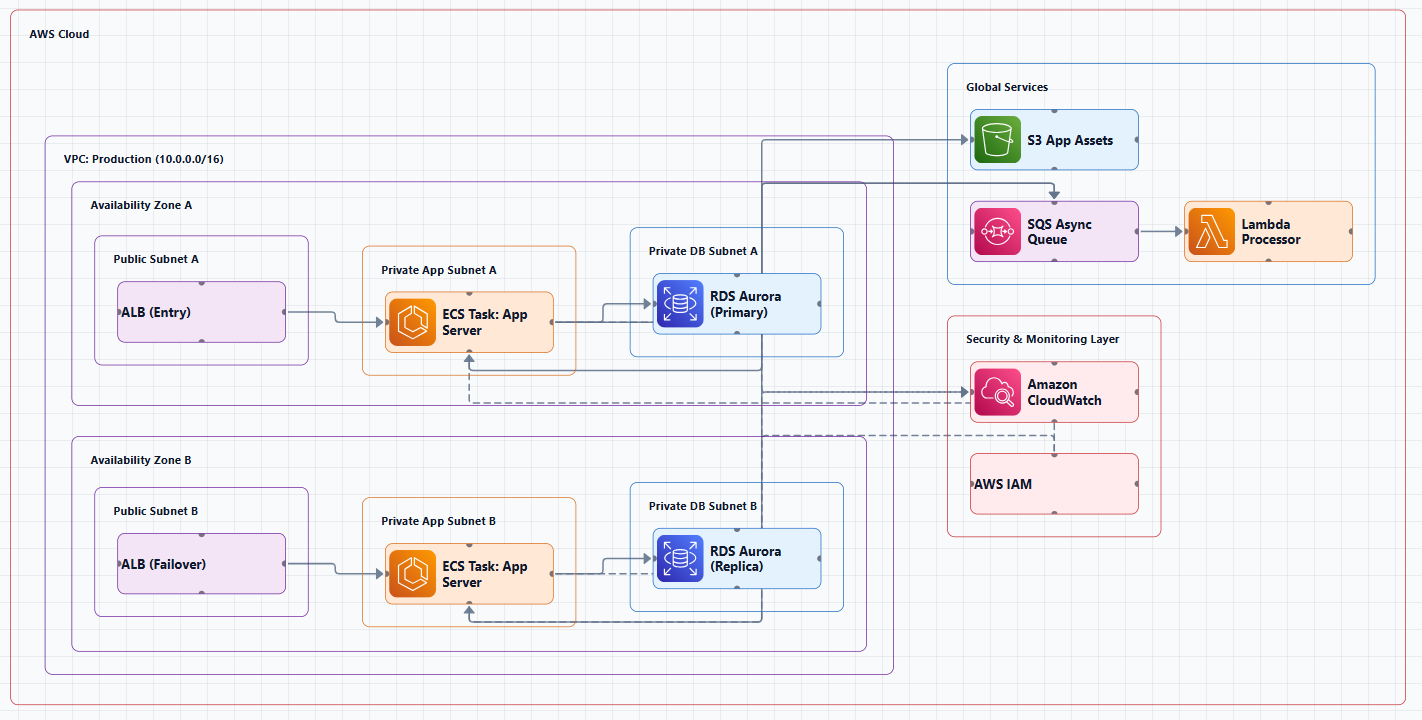
Draw.io (diagrams.net), The Free Workhorse
Draw.io is the most popular free option for drawing AWS architecture diagrams, and for good reason. It has built-in AWS icon libraries, works in the browser, exports to PNG/SVG/PDF, and integrates with Confluence, Google Drive, OneDrive, and Dropbox.
Getting started with AWS shapes in Draw.io:
Draw.io provides several years' worth of AWS icon libraries as well as Amazon's 3D or isometric shapes. Hover over a shape to see a tooltip that tells you what it represents in AWS notation.
Using AWS templates:
- Click Arrange > Insert > Template
- Expand the Cloud category, then select AWS
- Click Insert to add the template
The real cost isn't money, it's maintenance. The moment your infrastructure changes, a new subnet, a renamed service, an additional database, your diagram is out of date. Someone has to manually update it, and that someone is usually nobody.
Best for: Solo developers, small teams, students, and anyone who needs a free, flexible diagramming tool. Great for quick sketches and one-off diagrams.
Limitations: No automation. You pay with your time. Diagrams require manual updates.
Lucidchart, Enterprise Collaboration with Official AWS Icons
Lucidchart provides a clean, efficient way to diagram AWS-dependent infrastructures. Its AWS Simple Icon library is the official set as designated by Amazon Web Services.
Key features:
- Real-time collaboration, unlimited collaborators working simultaneously on the same document
- AWS import, save time by importing your AWS architecture directly
- Better auto-layout and alignment tools than Draw.io
- Additional Amazon libraries including messaging, deployment, and AWS containers
The problem is the same as Draw.io, it's still manual. You're paying $8-15/month per user for a tool that produces diagrams that go stale immediately.
Best for: Teams that need real-time collaboration and already use Lucidchart for other purposes.
Tradeoff: Still manual. Still maintenance-heavy. Costs add up.
Lunacy, Free Vector Editor for Polished Diagrams
Lunacy is a powerful, completely free vector editor with cloud architecture icon support. Unlike costly visualization software, Lunacy comes completely free even in commercial or enterprise settings without feature restrictions.
Best for: Creating polished, presentation-ready diagrams with full control over aesthetics.
Tradeoff: Not specialized for cloud architecture. No automation.
Method 2: AI-Powered Diagram Generation
AI-powered tools are fundamentally changing how you draw AWS architecture diagrams. Instead of dragging boxes, you describe your architecture in natural language, and the tool generates a professional diagram in seconds.
Visual Paradigm AI, Enterprise-Grade AI Generation
Visual Paradigm's AI Cloud Architecture Studio is a browser-based tool specifically tailored for modern cloud architects. As a leading AI diagram generator, it allows you to describe your requirements in plain English and receive a standards-compliant AWS diagram in minutes.
How it works:
- Describe your system: Input a prompt like "I want to build a real-time food delivery app with live order tracking, payments, and ratings"
- Select your provider: Choose AWS and select a deployment strategy, such as Low Cost/MVP or High Availability
- Technical deep dive: The AI asks clarifying questions to refine the stack (e.g., choosing between Relational or NoSQL databases)
- Generate architecture: The AI instantly builds a clean, interactive diagram using official AWS icons
- AI-powered modification: Use the AI Modify tool. Type "Add WAF and CloudWatch monitoring," and the diagram updates automatically
Key benefits:
- Natural language input: No manual dragging required
- Well-Architected Alignment: AI strategies ensure your design prioritizes cost-efficiency or uptime
- Interactive editor: Full control to move components or add custom metadata
- Export & share: High-res SVGs for stakeholder presentations or technical documentation
Best for: Enterprise teams that need a comprehensive modeling ecosystem (UML, SysML, ArchiMate, BPMN, C4) alongside cloud architecture diagrams.
Tradeoff: More complex and expensive than purpose-built cloud diagramming tools.
AI Line Studio, Natural Language to Animated Diagrams
AI Line Studio takes a fundamentally different approach from traditional diagramming tools. Instead of a drag-and-drop canvas, the primary input is natural language. Describe a system, "a 3-tier web app on AWS with EC2, RDS, and CloudFront", and it generates a structured diagram with official AWS icons in 15 to 20 seconds.
The output isn't just static. AI Line Studio supports animated diagrams (GIF, MP4) alongside standard PNG exports, plus shareable documentation links. This makes it genuinely useful for demos, training materials, and investor presentations. For AWS-specific workflows, the dedicated AI cloud diagram generator turns AWS descriptions into production-ready visuals. If you're working across multiple providers, the AI architecture diagram builder covers AWS, Azure, GCP, and OCI with over 3,000 officially licensed icons.
Best for: Engineers who value speed and want to draw diagrams from descriptions rather than spending time on manual placement. Also ideal for teams creating presentation-ready, animated architecture visuals.
Tradeoff: Less control over fine-grained layout compared to manual tools. Not suitable for non-technical diagram types.
AWS Diagram MCP Server, First-Party AI Diagram Generation
The draw.io MCP server, developed by AWS Samples, enables AI assistants to build technical diagrams on your local computer through natural language.
Key features:
- Privacy First: All operations run entirely on your local machine. No diagram data is transmitted over the network
- Natural language diagram creation through AI assistants
- Works with AWS, Kubernetes, and more icons
- 100% local operation with no network dependencies
Quick example:
You: "Create an AWS serverless architecture diagram with CloudFront, API Gateway, container-based Lambda (pulling from ECR), connecting to Aurora PostgreSQL, OpenSearch, S3, and Bedrock. Include Cognito for authentication, IAM roles, and CodePipeline for deployment. Show the VPC and private subnet structure."
AI: Generates a properly formatted draw.io diagram with official AWS icons.
The AWS Diagram MCP server specifically enables Kiro to generate architecture diagrams using the Python diagrams package, with access to the complete AWS icon set and architectural best practices.
Best for: Teams using AI assistants (Claude Desktop, Claude Code, Kiro) who want to generate AWS diagrams locally with full privacy.
Tradeoff: Requires MCP client configuration. Pre-release alpha software.
AWS Architecture Diagram Skill, Works with Any AI Assistant
A reusable skill for generating AWS architecture diagrams in draw.io format. Works with any AI assistant, ChatGPT, Claude Projects, Kiro CLI, Claude Code, or any internal AI agent that supports custom prompts and file uploads.
Key features:
- Left-to-right flow, UI/Frontend on left, data sources on right
- Official AWS icons, from draw.io's built-in
mxgraph.aws4namespace - Verified icon catalog, only icons confirmed to render correctly
- Consistent styling, proper AWS color palette
Installation: npx skills add vidanov/aws-architecture-diagram-skill
Best for: Teams already using AI assistants who want to add AWS diagram drawing capabilities without switching tools.
Method 3: Live Cloud Scanners
These tools connect to your actual AWS account and generate diagrams from live infrastructure.
AWS Workload Discovery, First-Party AWS Tool (Free)
Amazon's own solution, deployed as a CloudFormation stack in your account. It scans your resources and generates interactive diagrams.
Key features:
- Maintains an inventory of AWS resources across accounts and Regions
- Cost query builder, locate resources that may have incurred a cost
- Export to PNG, JSON, CSV, draw.io, or myApplications
- Search by resource name, tag name, or IP address
- First-party AWS tool, avoids security concerns about third-party services
Best for: Teams that need accurate, up-to-date diagrams of their live AWS infrastructure and want to keep data within their AWS account.
Tradeoff: Requires deploying a CloudFormation stack (about 30 minutes setup). AWS-only.
Cloudcraft, 3D Isometric Views with Cost Estimation
Cloudcraft (now owned by Datadog) scans your AWS account and generates both 2D and 3D architecture diagrams. The 3D isometric view looks impressive in presentations. It also includes cost estimation, hover over any resource to see its monthly cost.
The catch: you need to give it read access to your cloud account. For many organizations, this is a non-starter, security teams don't want a third-party service scanning production infrastructure. It's also expensive at $49/month for individual use.
Best for: Teams that regularly present architecture to executives, clients, or investors where visual quality and cost insights matter.
Tradeoff: Premium pricing. Security concerns with third-party access. AWS-only.
Holori, Automated Discovery with Diff Detection
Holori excels at providing high-level visibility for complex cloud environments. Its primary strength is the automated generation of AWS diagrams directly from cloud accounts, eliminating the need for manual drawing.
Key features:
- Daily sync, ensures diagrams reflect the real-time state of your infrastructure
- Diff diagrams, merges two versions highlighting added, modified, or deleted resources
- Cost management dashboard, see resource configurations alongside costs and usage
- Flexible editor, vast library of multi-cloud icons (AWS, Azure, GCP, and more) for hybrid designs
Best for: Large organizations with complex, multi-account AWS environments that need automated, always-up-to-date diagrams.
Tradeoff: Paid. More complex setup than browser-based tools.
Hava.io, Automated Diagrams with Change Tracking
Hava takes a similar approach to Cloudcraft but adds change tracking, it records every infrastructure change and lets you view historical diagrams. This is genuinely useful for debugging "what changed?" during an incident. It supports AWS, Azure, and GCP.
Best for: Teams that need audit trails and historical views of infrastructure changes.
Tradeoff: At $49/month, it's specialized. If you don't need change history, you're paying for features you won't use.
Method 4: Additional Free Online Tools
AWS Playboard, Interactive Drag-and-Drop with AI
AWS Playboard is a free online tool that lets you design, visualize, and share AWS architecture diagrams with an interactive drag-and-drop builder. Includes 100+ AWS service icons, animated connections, AI-powered generation, and one-click export.
Best for: Learners and engineers who want a visual, interactive way to understand AWS service relationships.
Figma, Professional Design Tool with AWS Templates
Figma is a free design tool used by top design teams like Uber, Square, and GitHub. It offers an AWS diagram library for creating architecture diagrams. Drag and drop shapes, arrows, and UML symbols with Figma's intuitive component library.
Best for: Teams already using Figma for design work who want to draw AWS architecture diagrams in the same tool.
Visual Paradigm Online, Free for Non-Commercial Use
Visual Paradigm Online is a FREE online diagramming software with support for AWS Architecture Diagrams and many other diagram types such as UML, Org Chart, Floor Plan, wireframe, family tree, ERD, and more.
Best for: Students and non-commercial use.
How to Choose the Right Method
If you need a diagram once and never again: Draw.io. Quick, free, no setup.
If you need to draw diagrams in seconds from a text description: AI Line Studio or Visual Paradigm AI. Try the AI cloud diagram generator to see how quickly you can turn an AWS description into a visual.
If you need animated diagrams for presentations: AI Line Studio supports GIF and MP4 exports.
If you need live infrastructure accuracy: AWS Workload Discovery (free, self-hosted) or Cloudcraft (paid).
If you need enterprise collaboration: Lucidchart.
If you need to keep data entirely local: AWS Diagram MCP Server.
If you use Terraform: Terravision generates diagrams directly from your infrastructure code.
If you need a free, visual learning tool: AWS Playboard.
Best Practices When Drawing AWS Architecture Diagrams
1. Use Official AWS Icons
AWS architecture icons are designed to be simple. Consistent use of official AWS icons makes diagrams easier to read.
2. Use Directional Arrows
Show the flow of data. Lines without arrows are ambiguous.
3. Emphasize Network Boundaries
Clearly show VPCs, subnets, and security groups.
4. Include the Main Components
A strong AWS architecture diagram should include the main services, network boundaries, user entry points, and the core data or request flow.
5. Label Everything
Provide clear, accurate labels for each icon. Don't assume readers will recognize an icon.
6. Include Metadata
Add a title, description, last updated date, author, and version. A diagram without a date is assumed to be outdated.
7. Keep It Simple
If your diagram has more than 15 to 20 nodes, it's too complex. Split it into multiple diagrams at different abstraction levels.
Summary
Drawing AWS architecture diagrams in 2026 has never been easier or more varied. You have options at every price point and skill level:
- Manual tools (Draw.io, Lucidchart) are free or cheap but require ongoing maintenance
- AI-powered generation (AI Line Studio, Visual Paradigm AI) turns plain English into professional diagrams in seconds
- Live infrastructure scanners (AWS Workload Discovery, Cloudcraft) generate diagrams from your actual AWS account
- First-party AWS tools (AWS Diagram MCP Server, AWS Architecture Diagram Skill) keep data local and private
The right tool depends on your workflow. If you value speed and natural language input, AI Line Studio is the fastest path from description to diagram. If you need live infrastructure accuracy, AWS Workload Discovery eliminates manual maintenance. If you need a free, reliable manual tool, Draw.io remains the people's champion.
Stop spending hours drawing diagrams that will be outdated next week. Start documenting your AWS architectures in a way that actually keeps pace with your infrastructure.
To get started drawing your own AWS architecture diagrams, explore the AWS architecture diagram maker for templates and practical examples. For end-to-end system architecture beyond AWS infrastructure, the AI system architecture generator covers distributed and enterprise system designs.