
How to Draw Azure Architecture Diagrams: Methods and Tools for 2026
Drawing Azure architecture diagrams is a core skill for any cloud professional, but the landscape of how to do it has changed dramatically. Manually dragging boxes and aligning connections for complex architectures is a major bottleneck, and the result is often outdated before you finish.
Today, you have a spectrum of options: from traditional manual tools, to AI-powered generators that turn natural language into diagrams in seconds, to infrastructure-as-code tools that keep diagrams in sync with your actual deployments.
This guide provides a complete, practical comparison of the best ways to draw Azure architecture diagrams in 2026, so you can choose the workflow that actually fits your needs.
Cloud Architecture
Create cloud architecture diagrams for AWS, Azure, GCP, and more. Design scalable infrastructure with professional cloud icons.
2026 guide to drawing Azure architecture diagrams, manual tools, AI generators, MCP servers, Terraform automation, and live scanners compared.
Click Cloud Architecture to open AI Line Studio and generate diagrams from natural language in seconds.
Method 1: Manual Drag-and-Drop Tools
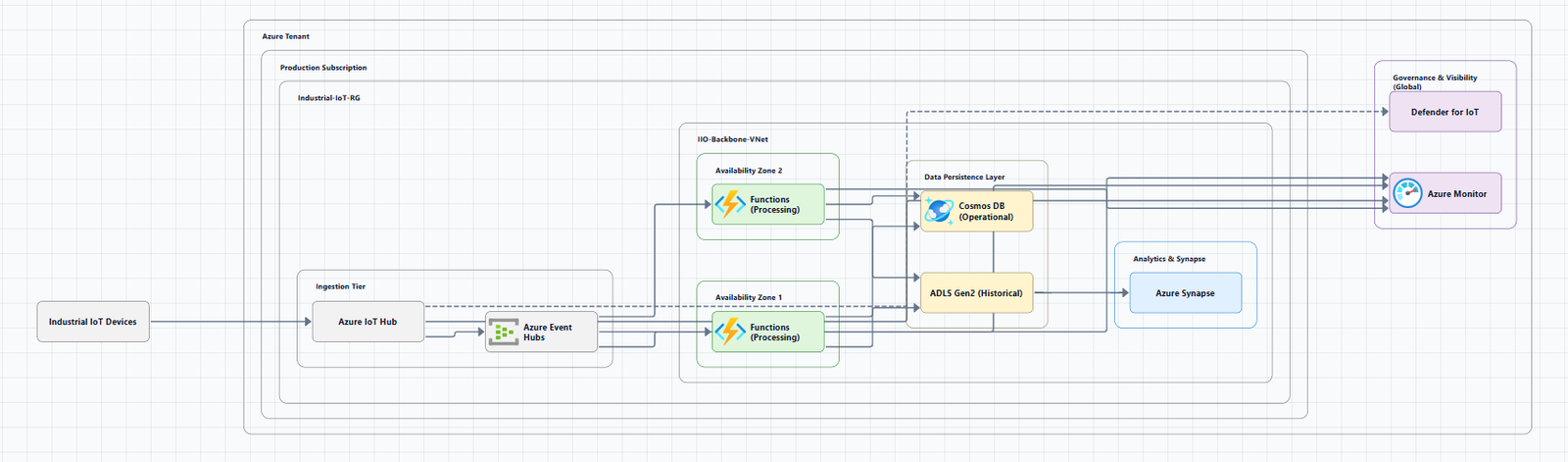
The traditional approach. You open a canvas, drag official Azure icons onto it, draw connectors, and label everything by hand.
Draw.io (diagrams.net), The Free Workhorse
Draw.io is the most popular free option for Azure architecture diagrams, and for good reason. It's completely free, runs in the browser (or as a desktop app), and includes a built-in Azure shape library.
Getting started with Azure shapes in Draw.io:
- Go to the online editor or open the desktop app.
- Click More Shapes at the bottom of the left panel.
- In the Networking section, click the checkbox to enable the Azure shape library.
- Click Apply. The Azure shape library will load in the left panel, with shapes separated into categories.
Using Azure templates:
- Click Arrange > Insert > Template to open the template library.
- Expand the Cloud section and select Azure to see the Azure diagram templates.
Pro tips for Draw.io:
- Use the scratchpad: Many Azure architectures repeat sub-sections. Select shapes, drag them onto the scratchpad, then click to add copies.
- Use rectangles to indicate regions: Use rectangles from the General shape library, then send them to the back on the Arrange tab.
- Draw connectors: Hover over any shape and drag from one of the four connection arrows to another shape.
The real cost isn't money, it's maintenance. Every time your infrastructure changes, someone needs to manually update the diagram. In practice, Draw.io diagrams go stale quickly.
Best for: Solo developers, small teams, and anyone who needs a free, flexible diagramming tool.
Limitations: No automation. You pay with your time. Diagrams require manual updates.
Microsoft Visio, The Official Enterprise Tool
Microsoft Visio is the recommended tool for creating Azure architecture diagrams. It includes a dedicated Azure Diagram template with shapes for various Azure services, and Azure icons are provided as general-purpose SVG files that you can drag and drop into Visio.
Best for: Professional, Microsoft-aligned diagramming in enterprise environments.
Tradeoff: Requires a paid license.
FigJam (by Figma), Free Collaborative Whiteboard
If you're looking to create Azure architecture diagrams without fiddling with endless symbols and arrows, start with a template from FigJam. With official Microsoft Cloud icons and intuitive drag-and-drop capabilities, your team can create and edit an Azure map with ease.
Best for: Teams that want a collaborative, browser-based whiteboard experience.
Method 2: AI-Powered Generators
AI-powered tools are transforming how architects draw Azure diagrams. Instead of dragging boxes, you describe your architecture in natural language, and the tool generates a professional diagram in seconds.
Visual Paradigm AI, Azure Well-Architected Alignment
Visual Paradigm's AI Cloud Architecture Studio is a browser-based, AI-first platform built specifically for modern cloud professionals. It serves as an AI-powered Azure design tool that aligns your infrastructure with the Azure Well-Architected Framework and enterprise best practices.
How it works:
- Describe your infrastructure: Input a prompt like "I want to build a real-time food delivery app on Azure with AKS, managed SQL Database, and a Redis cache, protected by an Application Gateway".
- Select your strategy: Choose an architecture goal such as High Availability, Enterprise Grade, or Low Cost/MVP.
- Technical deep dive: The AI engages in a discovery process, asking clarifying questions like "Should the database use geo-redundancy across different Azure regions for disaster recovery?".
- Automated generation: The AI renders a professional diagram featuring official Azure service icons and logical networking connections.
- Interactive AI modification: Type "Add a Web Application Firewall (WAF) to the front end and link the database to a private endpoint," and the diagram updates in real-time.
Key benefits:
- Service awareness: Understands AKS, SQL, and VNet relationship logic, not generic boxes.
- Infrastructure strategy: Applies automated high-availability and cost-efficiency patterns.
- Professional SVG exports: Download high-quality vectors for architecture decision records (ADRs) or stakeholder presentations.
- Multi-cloud ready: Compare Azure setups to similar stacks on AWS or GCP.
Best for: Enterprise teams that need Azure Well-Architected alignment and comprehensive modeling.
Tradeoff: Part of a broader enterprise ecosystem. More complex than purpose-built cloud diagramming tools.
AI Line Studio, Natural Language to Animated Diagrams
AI Line Studio takes a fundamentally different approach from traditional diagramming tools. Instead of a drag-and-drop canvas, the primary input is natural language. Describe a system, "a web app on Azure with App Service, Azure SQL Database, and Azure Front Door", and the tool generates a structured diagram with official Azure icons in 15 to 20 seconds.
The output supports animated diagrams (GIF, MP4) alongside standard PNG exports, plus shareable documentation links. For Azure-specific workflows, the dedicated AI cloud diagram generator turns Azure descriptions into production-ready visuals. If you're working across multiple providers, the AI architecture diagram builder supports Azure, AWS, GCP, and OCI.
Best for: Engineers who value speed and want to generate diagrams from descriptions rather than manual placement. Also ideal for teams creating presentation-ready, animated architecture visuals.
Tradeoff: Less control over fine-grained layout compared to manual tools. Not suitable for non-technical diagram types.
GenAI-DrawIO-Creator, AI-Powered Draw.io with Non-Destructive Iteration
GenAI-DrawIO-Creator is a Next.js web application that integrates AI capabilities with draw.io diagrams. Create, modify, and enhance diagrams through natural language commands and AI-assisted visualization.
Key features:
- LLM-Powered Diagram Creation: Leverage Large Language Models to create and manipulate draw.io diagrams through natural language commands.
- Non-Destructive Iteration: Edit diagrams by cell ID, the agent modifies only the targeted elements, preserving all user refinements across updates. Full regeneration is never needed.
- Image-Based Diagram Replication: Upload existing diagrams or images and have the AI replicate and enhance them automatically.
- Cloud Architecture Diagram Support: 34+ shape libraries (AWS, GCP, Azure, Kubernetes, BPMN, UML, Cisco, and more).
- Animated Connectors: Create dynamic and animated connectors between diagram elements.
Azure example prompt: "Generate a Azure architecture diagram with Azure icons. In this diagram, users connect to a frontend hosted on an instance".
Best for: Teams that want AI-generated diagrams with the ability to preserve manual refinements across updates.
Tradeoff: Open-source, community-driven.
Method 3: MCP-Based AI Tools
Model Context Protocol (MCP) servers act as plugins for AI assistants like GitHub Copilot or Claude. You simply ask "draw me an Azure architecture diagram" and it generates one for you.
Azure-DrawIO-MCP, Editable Diagrams via AI Assistant
Azure-DrawIO-MCP generates editable Azure architecture diagrams in Draw.io format using an MCP server.
What it does:
- Generates Azure architecture diagrams as
.drawiofiles - Uses official Azure icons from Draw.io's Azure2 SVG library
- Supports 100+ Azure resource types (VMs, App Services, AKS, SQL, etc.)
- Auto-layouts resources left-to-right (data sources on left, destinations on right)
- Groups resources into visual clusters (resource groups, VNets, subnets)
- Auto-opens diagrams in VS Code after generation
Why Draw.io over PNG:
| Feature | PNG (Original) | Draw.io (This Project) |
|---|---|---|
| Editable | ❌ Not editable | ✅ Fully editable |
| Version Control | ⚠️ Binary diffs | ✅ XML text diffs |
| VS Code Integration | View only | ✅ Edit in VS Code |
| Export Options | PNG only | ✅ PNG, SVG, PDF |
| Adjust Layout | ❌ Regenerate | ✅ Drag and drop |
Unlike PNG generators, the diagram is just a starting point, customize it however you like: drag icons to reposition, resize groups, add labels, copy/paste icons between diagrams, and export to PNG, SVG, or PDF.
Requirements: Python 3.10+ and VS Code with the Draw.io extension.
Best for: Teams using AI assistants (GitHub Copilot, Claude) who want editable, version-controllable Azure diagrams.
diagram-ai-generator, Multi-Cloud MCP Server
diagram-ai-generator is a professional AI-powered architecture diagram generator with multi-cloud support and MCP server integration. Generate accurate diagrams with provider-specific icons for Azure, AWS, GCP, Kubernetes, and more.
Key features:
- Professional Diagrams: Generate diagrams with real provider icons (Azure Functions, etc.)
- Multi-Cloud Support: Mix Azure, AWS, GCP, and other providers in a single diagram
- Smart Node Suggestions: Automatic suggestions when component names don't match exactly
- MCP Server Integration: Works seamlessly with Claude Desktop and other MCP clients
Quick example: "Create a microservices architecture with load balancer, containers, and Redis cache", the AI understands your requirements and generates production-ready diagrams with the correct cloud provider icons and relationships.
Best for: Teams using Claude Desktop who need multi-cloud diagram generation.
Tradeoff: Requires Python and MCP client configuration.
Method 4: Infrastructure-as-Code Diagram Generators
These tools generate diagrams directly from your Terraform code, ensuring diagrams stay in sync with your actual infrastructure.
Azure Terraform Diagram, VS Code Extension
Azure Terraform Diagram is a VS Code extension that generates beautiful Microsoft Azure-style infrastructure diagrams from your Terraform projects automatically, with comprehensive DevOps insights including security analysis, cost estimation, and infrastructure metadata.
Key features:
- Auto-generate diagrams on save: Automatically creates
architecture.pngwhen you save any.tffile - Resource Group Grouping: Resources are visually grouped inside their resource groups
- Interactive webview: Pan, zoom, and click-to-navigate
- Azure-style visuals: Uses official Microsoft Azure icons and color schemes
- Security Badges: Visual indicators for security issues (missing encryption, public endpoints, weak TLS)
- Cost Estimation: Monthly cost estimates displayed on resources and total architecture cost
Usage: Right-click on any folder in the VS Code Explorer and select "Generate Azure Infrastructure Diagram" to generate a diagram for just that folder's Terraform resources.
Best for: Engineers already working in VS Code who want automated Terraform diagrams with security and cost insights.
Tradeoff: VS Code-only. Requires Terraform projects to be in your workspace.
TerraVision, Diagrams from Terraform Code
TerraVision automatically converts your Terraform code into professional-grade cloud architecture diagrams using the official AWS, GCP, and Azure icon sets.
Key features:
- Always up-to-date: Diagrams generated directly from your Terraform code
- 100% client-side: No cloud access required; runs locally, your code never leaves your machine
- CI/CD ready: Automate diagram updates on every PR merge
- Free & open source: No expensive diagramming tool licenses
- Multi-cloud: AWS (full), GCP, and Azure (core services)
- Interactive HTML output: Clickable nodes, pan/zoom, search, animated data flow
- Editable draw.io export: Open in draw.io, Lucidchart, or any mxGraph editor
Quick start:
pipx install terravision
terravision draw --source ./path-to-your-terraform --show
Best for: Teams using Terraform who want automated, always-accurate diagrams without manual maintenance.
Tradeoff: Requires Terraform and Python setup. Azure support is currently partial (core services only).
Method 5: Live Environment Scanners
CloudNetDraw, Network Diagrams from Live Azure
CloudNetDraw is a free tool that generates Azure network diagrams (HLD and MLD) directly from your environment.
Best for: Teams that need accurate, up-to-date network topology diagrams from their live Azure environment.
Official Azure Icons
The Azure Architecture Center provides an official collection of Azure architecture icons including Azure product icons to help you build custom architecture diagrams.
Recent icon updates:
- July 2026: Added over 10 new icons, including Azure DocumentDB, Azure Resiliency, AI Gateway, and Azure DDoS custom policies. Also includes 10 new or updated Microsoft Foundry icons.
- November 2025: Added 13 new icons, including Azure Kubernetes Service (AKS) Network Policy, Azure Local, Azure Linux, and Azure PubSub.
- August 2025: Added 10 new icons, including Azure Service Groups, Microsoft Planetary Computer Pro, and Prometheus.
- March 2025: Added six new icons, including SQL Database Fleet manager and Microsoft Engage Center.
- November 2024: Added 10 new icons such as Microsoft Foundry, Azure landing zone, Azure VPN client, and Azure Managed Redis.
Usage guidelines:
- Do: Use the icon to illustrate how products can work together. Include the product name somewhere close to the icon. Use the icons as they would appear within Azure.
- Don't: Don't crop, flip, or rotate icons. Don't distort or change icon shape in any way. Don't use Microsoft product icons to represent your product or service.
Microsoft Visio note: The icons aren't provided in Visio stencil format. The icons are provided as general-purpose SVG files. You can drag and drop these icons into many diagramming and drawing tools, including Visio.
Best Practices for Drawing Azure Architecture Diagrams
The Azure Well-Architected Framework provides clear guidance on diagramming practices.
1. Use Standard Notations
Use widely recognized symbols, icons, and presentation conventions to ensure good readability and consistent interpretation.
2. Use Directional Arrows
Lines without arrows make relationships unclear. Always use arrows. Avoid double arrows, which imply bidirectional dependencies.
3. Label Everything Clearly
Provide clear, accurate, and meaningful labels for each icon, grouping container, and relationship.
4. Maintain Consistency
Use standardized colors, casing, icons, icon sizes, line weights, and arrow heads for similar elements.
5. Be Accurate
While diagrams are abstractions, don't sacrifice accuracy. Inaccuracies can lead to serious miscommunication and implementation delays.
6. Include Metadata
Include a title, description, last updated date, author, and version.
7. Use Official Icons
Always use the latest official Azure icons. The Azure Architecture Center provides an updated collection.
8. Layer, Don't Overload
Resist the urge to encode every subsystem in a single diagram. Provide progressive disclosure: an overview diagram leads to high-level diagrams, which lead to low-level implementation diagrams.
How to Choose the Right Tool
| If you need... | Choose... |
|---|---|
| A free, reliable manual tool | Draw.io (diagrams.net) |
| An enterprise-grade official Microsoft tool | Microsoft Visio |
| A collaborative whiteboard experience | FigJam |
| Azure Well-Architected alignment | Visual Paradigm AI |
| A diagram in seconds with no setup | AI Line Studio |
| Editable Draw.io diagrams with official Azure icons | Azure-DrawIO-MCP |
| AI-powered Draw.io with non-destructive iteration | GenAI-DrawIO-Creator |
| Multi-cloud support (Azure, AWS, GCP, K8s) | diagram-ai-generator |
| Automated Terraform diagrams with security + cost insights | Azure Terraform Diagram |
| CI/CD-ready automation from Terraform | TerraVision |
| Network diagrams from live Azure | CloudNetDraw |
Summary
Drawing Azure architecture diagrams in 2026 has never been easier or more varied. You have options at every price point and skill level:
| Method | Tools | Best For |
|---|---|---|
| Manual | Draw.io, Visio, FigJam | Quick sketches, presentations, full control |
| AI-Powered | Visual Paradigm AI, AI Line Studio, GenAI-DrawIO-Creator | Speed, iteration, Azure Well-Architected alignment |
| MCP-Based | Azure-DrawIO-MCP, diagram-ai-generator | AI assistant integration, editable outputs |
| IaC | Azure Terraform Diagram, TerraVision | Always-accurate, automated diagrams from code |
| Live Environment | CloudNetDraw | Network diagrams from live Azure |
Key takeaways:
- If you value speed and natural language input, AI Line Studio is the fastest path from description to diagram. Try the AI cloud diagram generator to see how quickly you can turn an Azure description into a visual.
- If you need Azure Well-Architected alignment, Visual Paradigm AI delivers enterprise-grade modeling.
- If you need editable diagrams with official Azure icons, Azure-DrawIO-MCP generates Draw.io files you can customize.
- If you use Terraform, Azure Terraform Diagram or TerraVision keep diagrams in sync with your infrastructure automatically.
- If you need a free, reliable manual tool, Draw.io remains the people's champion.
- If you need complete system architecture beyond Azure, the AI system architecture generator covers distributed and enterprise system designs.
Stop spending hours on diagrams that will be outdated next week. Start drawing your Azure architectures in a way that actually keeps pace with your infrastructure.