
Mermaid Azure Architecture Diagram: A Complete Guide to Code-Based Cloud Visualization
Azure architecture diagrams are essential for documenting cloud infrastructure, but maintaining them is often a nightmare. Traditional diagramming tools produce static images that go stale the moment your infrastructure changes.
Mermaid changes this. It's a diagramming tool that uses code (Markdown-like syntax) to generate diagrams, making them version-controllable, reviewable, and automatable. When you combine Mermaid with Azure, you get architecture diagrams that live alongside your infrastructure code and evolve with it.
This guide covers everything you need to know about creating Azure architecture diagrams with Mermaid, the syntax, real examples, best practices, and the tools that make it work.
Cloud Architecture
Create cloud architecture diagrams for AWS, Azure, GCP, and more. Design scalable infrastructure with professional cloud icons.
Complete guide to Mermaid Azure architecture diagrams, flowchart vs architecture-beta syntax, Azure icons, examples, automation, and best practices.
Click Cloud Architecture to open AI Line Studio and generate diagrams from natural language in seconds.
Why Use Mermaid for Azure Architecture Diagrams?
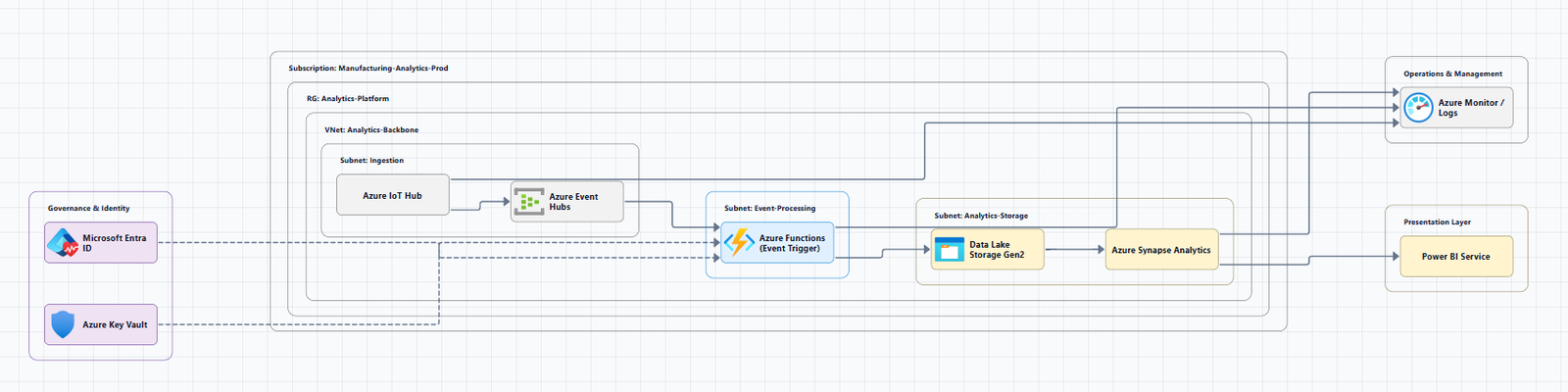
Mermaid turns plain text into diagrams. This matters for cloud architecture because:
Version control works. Mermaid diagrams are text files. You can check them into Git, track changes, review them in pull requests, and diff them like code. No more binary PNG files with unreadable diffs.
Documentation stays in sync. When your infrastructure-as-code changes, your diagrams can change in the same pull request. The diagram lives alongside the code it documents.
No vendor lock-in. Mermaid renders in GitHub, GitLab, VS Code, Notion, Confluence, and most Markdown renderers. Your diagrams work everywhere.
Automation is possible. You can generate Mermaid diagrams from Terraform state, Azure resource groups, or Bicep templates. Microsoft's azure-resource-visualizer skill does exactly this, analyzing deployed Azure resource groups and generating detailed Mermaid architecture diagrams.
Two Approaches to Mermaid Azure Diagrams
Mermaid supports two primary syntaxes for architecture diagrams. Understanding both is essential.
1. Traditional Flowchart Syntax (graph TB / graph LR)
This is the classic Mermaid approach. You define nodes and edges, and Mermaid handles the layout. It's simple, widely supported, and works in virtually every Mermaid environment.
Use graph TB (top-to-bottom) for vertical layouts. This is common for layered architectures where you want to show tiers from top to bottom.
Use graph LR (left-to-right) for horizontal layouts. This works better for wide architectures with many components across multiple layers.
2. Architecture Diagrams Syntax (Beta) (architecture-beta)
Mermaid v11.1.0+ introduced a dedicated architecture-beta syntax for cloud architecture diagrams. This syntax is specifically designed for infrastructure visualization.
Key difference: Architecture syntax supports grouping and relationships between services in a more structured way. However, it's still beta, not all services are supported, and layout consistency can vary.
Official example:
architecture-beta
  group api(cloud)[API]
    service db(database)[Database] in api
    service disk1(disk)[Storage] in api
    service disk2(disk)[Storage] in api
    service server(server)[Server] in api
    db:L -- R:server
    disk1:T -- B:server
    disk2:T -- B:db
Important limitation: Mermaid's default icon set for architecture diagrams is limited to five icons: cloud, database, disk, internet, and server. For Azure-specific icons, you need to register custom icon packs.
Real Azure Mermaid Diagram Examples
Example 1: Azure AI Foundry Architecture
This real example from Microsoft's Azure Verified Modules shows a comprehensive Azure AI Foundry deployment:
graph TB
    subgraph "Core AI Foundry (Required)"
        Account[AI Foundry Account]
        Project[Projects]
        Agent[Agent Service]
        Connections[Connections]
    end

    subgraph "BYOR Services (Optional)"
        KV[Key Vault]
        Storage[Storage Account]
        Cosmos[Cosmos DB]
        Search[AI Search]
    end

    subgraph "Supporting Services"
        Logs[Log Analytics Workspace]
        Roles[Role Assignments]
        Locks[Resource Locks]
    end

    subgraph "Networking (Private Deployment)"
        VNet[Virtual Network]
        Subnets[Subnets]
        DNS[Private DNS Zones]
        Endpoints[Private Endpoints]
        Bastion[Bastion]
        VMs[Virtual Machines]
    end
What this diagram shows:
- Core components in solid borders (required)
- BYOR (Bring Your Own Resource) services with dashed borders (optional external resources)
- Networking infrastructure for private deployments
- Logical grouping by function using subgraphs
Example 2: Hub-Spoke Network Topology
Hub-spoke is the foundational Azure networking pattern. The mermaid-azure VS Code extension can generate this directly from prompts:
graph LR
    subgraph "Hub VNet"
        FW[Azure Firewall]
        VPN[VPN Gateway]
        Bastion[Azure Bastion]
    end

    subgraph "Spoke 1"
        VM1[Virtual Machines]
        Subnet1[Subnet]
    end

    subgraph "Spoke 2"
        VM2[Virtual Machines]
        Subnet2[Subnet]
    end

    FW --> VM1
    FW --> VM2
    VPN --> FW
Example 3: Azure Resource Group Visualization
Microsoft's Azure Resource Visualizer skill generates Mermaid diagrams showing resource relationships within an Azure resource group:
graph TB
    subgraph "Resource Group: [name]"
        subgraph "Network"
            VNet[Virtual Network]
            Subnet[Subnet]
            NSG[Network Security Group]
        end

        subgraph "Compute"
            VM[Virtual Machine]
            NIC[Network Interface]
        end

        subgraph "Data"
            Storage[Storage Account]
            SQL[SQL Database]
        end

        subgraph "Security"
            KV[Key Vault]
        end
    end
Key principles from this example:
- Resources are grouped by function (Network, Compute, Data, Security)
- Each resource includes its configuration details (SKUs, tiers, settings)
- Relationships between groups are shown with edges
Example 4: NVA High Availability Architecture
This example uses the Azure icon pack with native Azure service icons:
graph TB
    subgraph "Hub VNet"
        FW[azure:firewalls]
        LB[azure:load-balancers]
        GW[azure:virtual-network-gateways]
    end
Note: This syntax requires registering the Azure icon pack. The @f5xc-salesdemos/icons-azure pack provides native Azure service icons for Mermaid diagrams.
Adding Azure Icons to Mermaid Diagrams
Mermaid doesn't include Azure icons by default. You need to register them.
Method 1: Register Icon Pack in Mermaid
In Mermaid v11+, you can register custom icon packs:
window["mermaid"].registerIconPacks([
    {
        name: "azure",
        loader: () => fetch("https://unpkg.com/azureiconkento@1.1.1/azureicons/allicons.json")
            .then((response) => response.json())
    }
]);
This example loads the azureiconkento icon pack. Once registered, you can use azure: prefix in your diagrams:
architecture-beta
    service vm(azure:virtual-machine)[VM]
    service sql(azure:sql-database)[SQL DB]
Method 2: Use Pre-Built Extensions
The mermaid-azure VS Code extension provides Azure architecture diagram support with built-in Azure icons. It offers three commands:
- Architecture: Mermaid's native architecture syntax
- Flowchart: Traditional flowchart syntax
- architecture-azureicon: Architecture syntax with Azure icons
Method 3: Use Community Icon Packs
Several community icon packs support Azure icons for Mermaid:
@f5xc-salesdemos/icons-azure, native Azure service icons (firewalls, load balancers, virtual network gateways, etc.)- Azure icon packs available on npm and CDN
Tools for Mermaid Azure Diagrams
| Tool | Purpose | Key Feature |
|---|---|---|
| mermaid-azure (VS Code) | Azure diagram generation | Hub-spoke, subscriptions, resource groups |
| Azure Resource Visualizer | Auto-generate from live Azure | Analyzes resource groups |
| Mermaid Live Editor | Online rendering | Preview and edit |
| Markdown Preview Enhanced | VS Code preview | Custom icon packs |
| GitHub Copilot for Azure | AI-assisted generation | Creates diagrams from prompts |
mermaid-azure VS Code Extension
This extension provides Azure architecture diagram support directly in VS Code:
Features:
- Hub-spoke configuration
- Subscription and resource group hierarchy
- Chat history context for iterative refinement
- Bicep file context to generate diagrams from IaC
Usage:
- Install the extension
- Describe your architecture in a prompt
- Generate the Mermaid diagram
Example prompt: "Hub-spoke configuration with a firewall in the hub and two spokes with VMs"
Azure Resource Visualizer Skill
Microsoft's azure-resource-visualizer skill analyzes deployed Azure resource groups and generates detailed Mermaid architecture diagrams.
When to use it: When you need to visualize existing Azure resources or understand how resources relate to each other.
What it produces: Comprehensive Mermaid diagrams that clearly illustrate the architecture.
Syntax requirements:
- Use
graph TB(top-to-bottom) orgraph LR(left-to-right) - Group resources by layer
Best Practices for Mermaid Azure Diagrams
1. Use Subgraphs for Logical Grouping
Subgraphs (subgraph "Name" ... end) are the primary way to organize resources by function, layer, or environment.
Common groupings:
- By tier: Web, Application, Data
- By network: VNet, Subnets, Security Groups
- By environment: Production, Staging, Development
- By ownership: Team A, Team B, Shared Services
2. Choose the Right Layout Direction
Use graph TB (top-down) for:
- Layered architectures (presentation → application → data)
- Diagrams where you want to show progression
- Vertical documentation flows
Use graph LR (left-right) for:
- Wide architectures with many parallel services
- CI/CD pipelines
- Diagrams that need to fit in narrow documentation spaces
3. Label Nodes Clearly
Each node should have a clear, descriptive label:
VM[Virtual Machine - Web Server]
SQL[Azure SQL Database - Customer Data]
KV[Azure Key Vault - Secrets]
4. Show Relationships with Edges
Edges show how data flows between components:
WebApp --> SQL[Azure SQL Database]
WebApp --> Cache[Azure Redis Cache]
API --> ServiceBus[Azure Service Bus]
5. Include Metadata in Documentation
When using Mermaid diagrams in documentation, include:
- Network architecture description: VNets, subnets, network security
- Data flow: How data moves between components
- Identity and access: Authentication and authorization patterns
6. Use Color-Coding for Clarity
Mermaid supports styling nodes with different colors:
style VNet fill:#0072C6,stroke:#005A9E,color:#FFFFFF
style SQL fill:#0072C6,stroke:#005A9E,color:#FFFFFF
style VM fill:#F25022,stroke:#C7502A,color:#FFFFFF
7. Keep Diagrams Maintainable
Don't overload one diagram. If it has more than 20-30 nodes, break it into multiple diagrams at different abstraction levels.
Use separate diagrams for:
- High-level overview
- Network architecture
- Data flow
- Security and identity
Automation: Generate Mermaid Diagrams from Azure
The real power of Mermaid Azure diagrams comes from automation. Several tools can generate diagrams automatically:
From Azure Resource Groups
The azure-resource-visualizer skill analyzes deployed Azure resource groups and generates comprehensive Mermaid diagrams:
- Connect to your Azure subscription
- Select a resource group
- The tool analyzes resources and relationships
- Generates a Mermaid diagram with:
- Resources grouped by layer (Network, Compute, Data, Security)
- Detailed node labels including configuration details
- Relationships between resources
From Terraform Modules
The generate-terraform-module-diagram skill analyzes Terraform modules and generates Mermaid diagrams with embedded Azure and AWS provider icons.
From Bicep Files
The mermaid-azure VS Code extension can use Bicep file context to generate architecture diagrams.
From Prompts with AI
GitHub Copilot for Azure can create Mermaid architecture diagrams directly from natural language prompts.
Integration with Documentation Workflows
Mermaid diagrams integrate seamlessly with modern documentation workflows:
GitHub and GitLab: Mermaid renders natively in Markdown files. Diagrams appear directly in READMEs and wikis.
VS Code: Mermaid preview is built in or available via extensions like Markdown Preview Enhanced.
Azure DevOps Wikis: Mermaid renders in Azure DevOps wiki pages.
CI/CD Automation: The azure-resource-visualizer skill is part of Microsoft's azure-skills repository, enabling automated diagram generation in CI/CD pipelines.
Common Pitfalls and Solutions
| Pitfall | Solution |
|---|---|
| Icons don't render | Register Azure icon packs in your Mermaid configuration |
| Layout changes on save | Beta syntax is still evolving, use stable flowchart syntax for production |
| Complex diagrams are messy | Break into multiple smaller diagrams; use subgraphs for grouping |
| Mermaid syntax errors | Test in Mermaid Live Editor before committing |
| No Azure icons in GitHub | GitHub doesn't support custom icon packs, use text labels instead |
Summary
Mermaid Azure architecture diagrams bring the benefits of code-based documentation to cloud infrastructure:
Key takeaways:
| Aspect | Recommendation |
|---|---|
| Syntax | Use graph TB or graph LR for stability; architecture-beta for structured diagrams |
| Icons | Register Azure icon packs or use mermaid-azure extension |
| Grouping | Use subgraphs for logical organization (Network, Compute, Data, Security) |
| Tools | mermaid-azure (VS Code), Azure Resource Visualizer, Mermaid Live Editor |
| Automation | Generate from Terraform, Bicep, or live Azure resource groups |
| Documentation | Integrate with GitHub, Azure DevOps, and CI/CD pipelines |
The workflow that works:
- Design, Describe your architecture in a prompt or use a template
- Generate, Use AI or automation to create the initial Mermaid diagram
- Review, Validate the diagram renders correctly in your documentation platform
- Version, Check the Mermaid code into Git alongside your infrastructure
- Maintain, Update the diagram when infrastructure changes (or regenerate automatically)
If you're ready to move beyond static PNGs and start treating your Azure architecture diagrams as code, explore the Azure architecture diagram tool for editable visual alternatives, or try the AI cloud diagram generator to turn Azure descriptions into visual diagrams instantly. For complete system architecture beyond Mermaid, the AI system architecture generator covers distributed and enterprise system designs.