
Microsoft Azure Architecture Diagram: Components, Patterns & Best Practices
Microsoft Azure architecture diagrams are the visual language of cloud infrastructure. They show how Azure services are organized and connected to deliver applications, enforcing security boundaries and clarifying data flow in a way that text alone cannot. Without a clear diagram, teams struggle to align, stakeholders miss critical details, and production issues become harder to trace.
This guide provides a comprehensive resource on Microsoft Azure architecture diagrams, what they are, the common components and patterns they include, the best practices for creating effective ones, and the tools and resources you can use.
Cloud Architecture
Create cloud architecture diagrams for AWS, Azure, GCP, and more. Design scalable infrastructure with professional cloud icons.
Comprehensive guide to Microsoft Azure architecture diagrams, core components, common styles and patterns, best practices, examples, and tools.
Click Cloud Architecture to open AI Line Studio and generate diagrams from natural language in seconds.
What Is a Microsoft Azure Architecture Diagram?
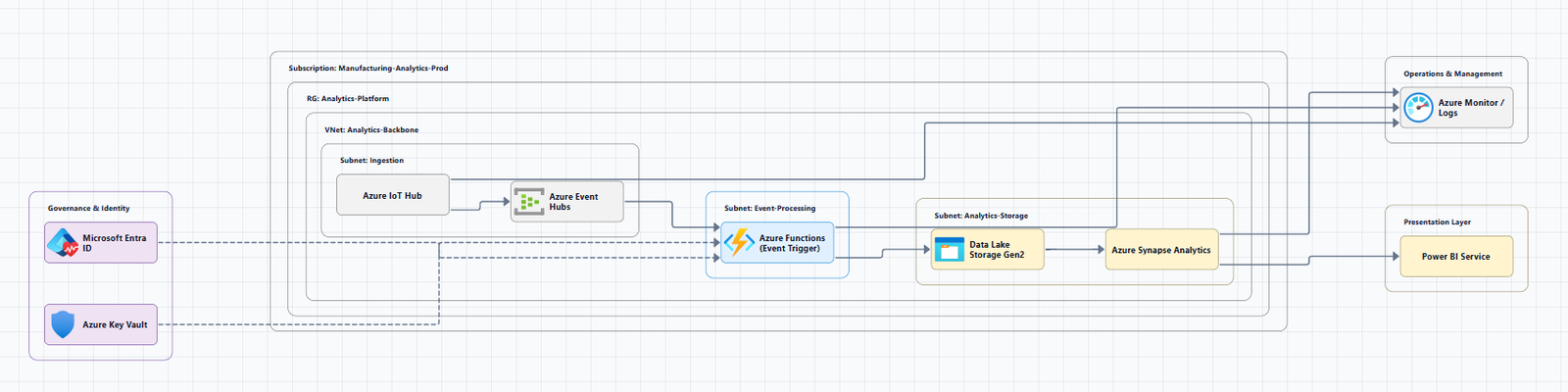
A Microsoft Azure architecture diagram is a visual representation of a system built on Microsoft Azure. It shows how Azure services, Virtual Machines, App Service, Azure Kubernetes Service (AKS), SQL Database, storage accounts, networking components, and security controls, are organized and connected to support an application or workload.
At its core, a diagram answers fundamental questions:
- What services are involved? (e.g., a web app, a database, a load balancer)
- How do they relate? within a solution
- Where does data flow? between components
Architects often communicate through diagrams. Well-designed visuals are powerful tools that help implementers, security reviewers, and business stakeholders converge on a shared mental model, expose risks earlier, and reduce rework. Ultimately, the choice of architecture diagram depends on what you're trying to convey and your audience's questions.
Core Azure Architecture Components
Every Azure diagram uses a common set of service categories. Understanding these is the first step to reading and creating diagrams.
Compute Services
Compute services provide the processing power for your applications:
| Service | Description |
|---|---|
| Azure Virtual Machines | IaaS virtual machines with full OS control |
| Azure App Service | PaaS for hosting web apps, REST APIs, and mobile backends |
| Azure Kubernetes Service (AKS) | Managed Kubernetes for container orchestration |
| Azure Functions | Serverless event-driven compute |
| Azure Container Instances | Serverless containers for simple workloads |
Storage Services
Storage services handle data persistence:
- Azure Blob Storage: Object storage for unstructured data
- Azure Files: Managed file shares
- Azure Disk Storage: Block storage for VMs
- Azure Data Lake Storage: Scalable data lake for analytics
Database Services
Database services manage structured and semi-structured data:
- Azure SQL Database: Managed relational database
- Azure Cosmos DB: Globally distributed NoSQL database
- Azure Database for PostgreSQL/MySQL: Managed open-source databases
- Azure Cache for Redis: In-memory caching
Networking Services
Networking services connect everything together:
- Azure Virtual Network (VNet): Your private network in the cloud
- Subnets: Segments of a VNet's IP address range
- Azure Load Balancer: Distributes traffic across VMs
- Application Gateway: Layer 7 load balancer with WAF
- Azure Front Door: Global load balancer and CDN
- Azure DNS: Domain name resolution
- VPN Gateway and ExpressRoute: Hybrid connectivity
Security and Management Services
Security and management services protect and monitor your infrastructure:
- Microsoft Entra ID (formerly Azure AD): Cloud-based identity and access management service
- Azure Key Vault: Secrets, keys, and certificate management
- Azure Monitor: Monitoring service that collects, analyzes, and acts on telemetry data
- Azure Security Center: Security posture management
- Azure Policy: Governance and compliance enforcement
Integration and Messaging Services
Integration services connect applications and systems:
- Azure API Management: API gateway and developer portal
- Azure Event Hubs: Real-time data streaming
- Azure Service Bus: Reliable cloud messaging
- Azure Logic Apps: Workflow automation
- Azure Event Grid: Event routing at scale
Common Azure Architecture Styles
Azure architecture styles are families of architectures that share specific characteristics. Here are the most frequently used styles.
N-Tier Architecture
N-tier is a traditional architecture for enterprise applications that divides an application into logical layers and physical tiers. Each layer has a specific responsibility, and layers manage dependencies by only calling into layers under them. Typical layers include presentation, business logic, and data access.
When to use: Migrating existing applications that already use a layered architecture. This approach requires minimal changes when you move to Azure and supports mixed environments with both on-premises and cloud components.
When NOT to use: When you need frequent updates and agility, horizontal layering can make it difficult to introduce changes without affecting multiple parts of the application.
Web-Queue-Worker
This architecture consists of a web front end, a message queue, and a back-end worker. The web front end handles HTTP requests and user interactions, while the worker performs resource-intensive tasks, long-running workflows, or batch operations. Communication between the front end and worker occurs through an asynchronous message queue.
When to use: Applications with relatively simple domains that have some resource-intensive processing requirements. Easy to understand and deploy with managed Azure services like App Service and Azure Functions. You can scale the front end and worker independently.
When NOT to use: Without careful design, both components can become large and monolithic.
Microservices Architecture
Microservices decomposes applications into a collection of small, autonomous services. Each service implements a single business capability within a bounded context and is self-contained with its own data storage. Services communicate through well-defined APIs and can be developed, deployed, and scaled independently.
When to use: Large, complex applications with multiple independent teams that need to deploy and scale services independently.
When NOT to use: Small applications where the operational overhead of microservices outweighs the benefits. Teams without strong DevOps practices.
Event-Driven Architecture
Event-driven architectures decouple services through asynchronous messaging. Services communicate by publishing and consuming events, enabling loose coupling and resilience.
When to use: Systems where different components operate at different speeds or process high volumes of events reliably. Ideal for real-time processing and complex workflows.
When NOT to use: Simple request-response workflows where the overhead of event-driven patterns isn't justified.
Core Azure Architecture Patterns
Hub-Spoke Network Topology
The hub-spoke network pattern, also known as hub and spoke, is the network topology that the Cloud Adoption Framework for Azure recommends.
What it is:
- Hub virtual network: The hub hosts shared Azure networking services and is the central point of connectivity for cross-premises networks. It provides features like cross-premises gateway (VPN or ExpressRoute), egress control, ingress control, remote access, and routing.
- Spoke virtual networks: Spoke networks isolate and manage workloads separately. Each workload can include multiple tiers, with multiple subnets connected through Azure load balancers.
When to use: Enterprise organizations with multiple environments and workloads requiring centralized security, connectivity, and shared services.
Key benefits: Centralized management of shared services, simplified network security, and logical isolation of workloads.
Azure Landing Zone Architecture
The Azure landing zone reference architecture is an example of scaled-out target architecture intended to help organizations operate successful cloud environments while maintaining best practices for security and governance.
Design areas include:
- Azure billing and Active Directory tenant: Proper tenant creation, enrollment, and billing setup
- Identity and access management: Primary security boundary in the public cloud
- Resource organization: Subscription design and management group hierarchy
- Network topology and connectivity: Foundational aspect of any cloud architecture
- Security: Implement controls and processes to protect your cloud environments
- Management: Management baseline for visibility, operations compliance, and protect and recover capabilities
- Governance: Automate auditing and enforcement of governance policies
- Platform automation and DevOps: CI/CD and automation
When to use: Organizations establishing a multi-account cloud foundation at scale.
Example Architecture: Basic Web Application
The Basic Web Application reference architecture is an introductory architecture for learning about running web applications on Azure App Service in a single region.
Architecture Diagram
The architecture consists of four main components:
- Azure App Service: Hosts the web application code
- Azure SQL Database: Stores application data
- Microsoft Entra ID: Provides identity and access management
- Azure Monitor: Collects telemetry and logs
Workflow
The workflow is straightforward:
- A user issues an HTTPS request to the App Service's default domain on
azurewebsites.net. The TLS connection is established from the client directly to App Service. The certificate is managed completely by Azure. - Easy Auth, a feature of Azure App Service, ensures that the user accessing the site is authenticated with Microsoft Entra ID.
- The application code deployed to App Service handles the request. For example, that code might connect to an Azure SQL Database instance, using a connection string configured in the App Service as an app setting.
- Information about the original request to App Service and the call to Azure SQL Database is logged in Application Insights.
Important: This architecture isn't meant to be used for production applications. It's intended to be an introductory architecture for learning and proof-of-concept (POC) purposes.
Example Architecture: Multi-Tier Web Application for High Availability and Disaster Recovery
For mission-critical applications, Microsoft provides a multi-tier architecture built for high availability and disaster recovery.
Architecture Diagram
The application consists of three layers:
- Web tier: The top layer that includes the UI. Parses user interactions and passes actions to the next layer for processing.
- Business tier: Processes the user interactions and makes logical decisions about the next steps. Connects the web tier and the data tier.
- Data tier: Stores the application data using a database, object storage, or file storage.
Workflow
The following workflow corresponds to the architecture:
- Users access the front-end ASP.NET web tier via the Azure Traffic Manager endpoint.
- Traffic Manager redirects traffic to the primary public IP address in the primary source region.
- The public IP address redirects the call to one of the web tier VM instances through a public load balancer.
- An internal load balancer routes each call from the web tier to a business tier VM instance for processing.
- The business tier processes the operation, and the ASP.NET application connects to a SQL Server cluster in the back-end tier through an internal load balancer.
- For disaster recovery, Azure Site Recovery replicates VMs to a target region. When a disruption occurs, you invoke Site Recovery failover and Traffic Manager automatically redirects client traffic.
Azure Architecture Diagram Best Practices
The Azure Well-Architected Framework provides clear guidance on diagramming practices.
1. Use Standard Notations
Use widely recognized symbols, icons, and presentation conventions to ensure good readability and consistent interpretation across different audiences.
2. Use Directional Arrows
Lines without arrows make relationships unclear. Always use arrows. When bi-directional communication exists, either show two separate flows (preferred) or annotate a single arrow with request/response notes. Avoid bidirectional arrows, double arrows imply bidirectional dependencies, which can create confusion.
3. Label Everything Clearly
Provide clear, accurate, and meaningful labels for each icon, grouping container, and relationship. Label lines when relationships aren't immediately obvious from context.
4. Maintain Consistency
Use standardized colors, casing, icons, icon sizes, line weights, line types, arrow heads, and border styles for similar elements. Apply the same taxonomy across every diagram in the solution set.
5. Be Accurate
While diagrams are abstractions, don't sacrifice accuracy for unnecessary simplicity. For example, don't depict a PaaS service inside a subnet if it's actually accessed over a private endpoint. Inaccuracies in diagrams can lead to serious miscommunication and implementation delays.
6. Include Metadata
Ensure each diagram contains metadata that provides essential context about its purpose, scope, and significance. Include elements such as title, description, last updated date, author, version, and external references.
7. Use Official Icons and Service Names
Always use the latest official icons and naming conventions. Don't stretch or recolor brand shapes arbitrarily. Microsoft provides an official collection of Azure architecture icons.
Icon Usage Guidelines:
- Do: Use the icon to illustrate how products can work together. Include the product name somewhere close to the icon. Use the icons as they would appear within Azure.
- Don't: Don't crop, flip, or rotate icons. Don't distort or change icon shape in any way. Don't use Microsoft product icons to represent your product or service.
8. Provide a Legend
If you introduce border or line semantics (e.g., solid is a synchronous call while dash is asynchronous), include a compact legend.
9. Layer, Don't Overload
Resist the urge to encode every subsystem, data classification, and runtime path in a single diagram. Provide progressive disclosure: a context diagram leads to a container diagram, which leads to focused component or sequence diagrams.
Tools for Creating Azure Architecture Diagrams
Official Azure Icons
The Azure Architecture Center provides an official collection of Azure architecture icons, including Azure product icons. The icons are provided as general-purpose SVG files. You can drag and drop these icons into many diagramming and drawing tools, including Visio.
Icon updates:
- July 2026: Added over 10 new icons, including Azure DocumentDB, Azure Resiliency, AI Gateway, and Azure DDoS custom policies. Additionally, this batch includes 10 new or updated Microsoft Foundry icons.
- November 2025: Added 13 new icons, including Azure Kubernetes Service (AKS) Network Policy, Azure Local, Azure Linux, and Azure PubSub.
- August 2025: Added 10 new icons, including Azure Service Groups and Prometheus.
Diagramming Tools
Microsoft Visio: The recommended tool for creating Azure architecture diagrams. Azure icons are provided as SVG files that you can drag and drop into Visio. The Azure Architecture Center provides downloadable Visio files for reference architectures.
Draw.io (diagrams.net): A free, browser-based diagramming tool with a built-in Azure shape library. You can enable the Azure shape library by going to More Shapes > Networking > Azure.
AI-Powered Tools:
AI Line Studio generates Azure architecture diagrams from natural language descriptions in seconds. For Azure-specific workflows, the dedicated AI cloud diagram generator turns Azure descriptions into production-ready visuals.
Infrastructure-as-Code Tools
Azure-DrawIO-MCP: Generates Azure architecture diagrams as .drawio files using official Azure icons from Draw.io's Azure2 SVG library. Supports 100+ Azure resource types (VMs, App Services, AKS, SQL, etc.).
TerraVision: Automatically converts Terraform code into architecture diagrams using official Azure icons.
Summary
Microsoft Azure architecture diagrams are essential for design, documentation, and communication. A well-crafted diagram shows how Azure services are organized and connected to support an application.
Key takeaways:
| Element | Description |
|---|---|
| Core components | Compute, storage, databases, networking, security, management, and integration services |
| Common styles | N-tier, Web-Queue-Worker, Microservices, Event-Driven |
| Common patterns | Hub-Spoke network topology, Azure landing zone |
| Best practices | Use standard notations, directional arrows, clear labels, consistency, accuracy, metadata, official icons, and layered diagrams |
| Official icons | Available from the Azure Architecture Center as SVG files |
| Tools | Microsoft Visio, Draw.io, AI-powered generators, infrastructure-as-code tools |
Document and centralize architecture diagrams: Microsoft's Cloud Adoption Framework emphasizes the importance of developing documentation and internal repositories that detail account structure, service patterns, architecture patterns, and network topology.
To start creating your own Microsoft Azure architecture diagrams, explore the Azure architecture diagram tool for templates and practical examples. For automated diagram generation, try the AI cloud diagram generator to turn an Azure description into a visual instantly. For complete system architecture beyond Azure, the AI system architecture generator covers distributed and enterprise system designs.