
What to Include in an AWS Architecture Diagram: The Essential Checklist
A clear, well-structured AWS architecture diagram is one of the most powerful tools a cloud team can have. It's the universal language that aligns everyone, from engineers and architects to business stakeholders and AWS reviewers, on how your system is built, how data flows, and where security boundaries exist.
A great diagram isn't about aesthetics; it's about clarity and purpose. It should answer the core question: "How does this product actually run on AWS?". To do that, it needs to include the essential components that tell the complete story of your architecture.
Here is a comprehensive checklist of everything you should include.
Cloud Architecture
Create cloud architecture diagrams for AWS, Azure, GCP, and more. Design scalable infrastructure with professional cloud icons.
Complete checklist for AWS architecture diagrams, official icons, VPC boundaries, compute, storage, data flows, security controls, reviewer-ready best practices, and tools.
Click Cloud Architecture to open AI Line Studio and generate diagrams from natural language in seconds.
✅ The Essential Components Checklist
1. Official AWS Service Icons and Labels
Every service in your architecture must be represented using the correct, official AWS icon and clearly labeled.
- Use official icons: These provide a consistent, professional visual language that cloud engineers and architects recognize instantly. Find the latest set on the AWS Architecture Icons page. They are updated quarterly.
- Label everything clearly: A generic label like "DB" is not enough. The icon tells the viewer the type of service; the label tells them the purpose. Write "Amazon RDS (PostgreSQL)" or "S3 (Customer Uploads Bucket)" to be precise.
- Use descriptive names: Follow consistent naming conventions like
WebServerInstanceinstead ofInstance1.
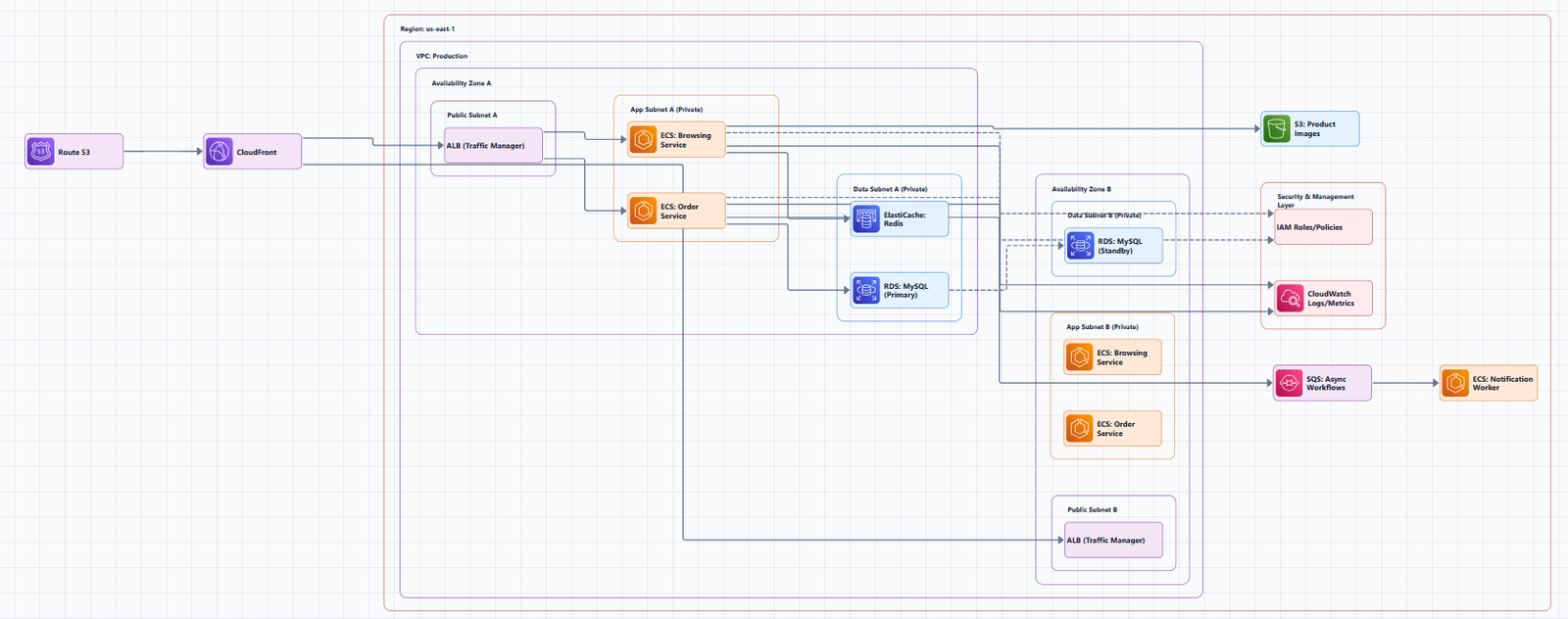
2. Network Topology and Security Boundaries
This is one of the most critical sections, showing how your resources are isolated and protected.
- Virtual Private Cloud (VPC): Show the main VPC boundary that contains your resources.
- Subnets: Clearly distinguish between public and private subnets and indicate which Availability Zones they reside in.
- Network Security:
- Security Groups: Show these as virtual firewalls attached to resources like EC2 instances or load balancers.
- Network ACLs (NACLs): Indicate these subnet-level security rules.
- Routing and Connectivity:
- Internet Gateway: Show the entry and exit point for traffic to and from the public internet.
- NAT Gateway: If private subnets need internet access for updates, show this component.
- Route Tables: Indicate the routing rules that direct traffic within your VPC.
3. Compute Resources
Include the services that run your application logic.
- Amazon EC2: Represent individual virtual servers or Auto Scaling Groups.
- AWS Lambda: Show serverless functions for event-driven workloads.
- Amazon ECS / Amazon EKS: Indicate container orchestration services.
4. Storage and Databases
Show where your application stores and retrieves data.
- Object Storage: Amazon S3 for static assets, data lakes, and backups.
- Block Storage: Amazon EBS volumes attached to EC2 instances.
- Relational Databases: Amazon RDS or Amazon Aurora.
- NoSQL Databases: Amazon DynamoDB.
5. User Entry Points and Data Flow
This part of the diagram tells the story of how users interact with your system and how data moves through it.
- End Users/Clients: Show who is using the solution and from where (public internet, private network, etc.).
- Data Flow Arrows: Use arrows to show the direction of requests, storage, and responses.
- Labeled Data Flows: Label arrows with what's flowing, "HTTP Request," "Read," "Write," or "API Call".
- Load Balancers: Include Amazon CloudFront for CDN and Application Load Balancers (ALB) or Network Load Balancers (NLB) to distribute traffic.
6. Security, Identity, and Management
This section demonstrates that you've built your architecture with best practices in mind.
- Identity and Access Management (IAM): Indicate roles, policies, and permissions for users and services.
- Monitoring and Logging: Include Amazon CloudWatch for metrics and alarms, and AWS CloudTrail for API audit logs.
- Multi-Tier View: Clearly separate your architecture into logical layers like Presentation, Application, and Data layers.
📐 Best Practices for a Reviewer-Ready Diagram
Following best practices ensures your diagram is clear, professional, and passes AWS reviews.
- Use Official Icons and a Clean Layout: Use a white or light-gray background with monochrome icons for a clean experience. Use icons at their predefined size, color, and format.
- Maintain Consistent Spacing: Use 180px horizontal and 120px vertical gaps between service group containers.
- Group by Function or Security Boundary: Use logical grouping strategies like grouping by tier (web, app, data), environment (dev, staging, prod), or security boundary.
- Follow a North-South Orientation: Place external users and the internet at the top, and internal resources at the bottom.
- Use Clean Edge Routing: Connect arrows directly to service icons, not to container or group shapes.
- Treat It as a Living Document: Architecture diagrams should be updated to reflect the current state of the system. Outdated diagrams create false confidence.
🛠️ Tools to Build Your Diagram
Modern tools can help you create, maintain, and collaborate on your diagrams more efficiently.
- Official AWS Icons: Start with the AWS Architecture Icons page.
- AI-Powered Generation: Tools like AI Line Studio can turn a plain-language description of your system into a production-ready diagram in seconds. The AWS architecture diagram tool provides editable templates with official AWS icons, while the AI cloud diagram generator helps you iterate quickly.
- Manual & Collaborative Tools: Lucidchart, draw.io (diagrams.net), and Miro are popular tools with built-in AWS shape libraries.
💎 The Bottom Line
A great AWS architecture diagram is a complete, clear, and accurate technical blueprint. It tells the entire story of how your system runs on AWS, who interacts with it, and how it's secured. By including all the essential components outlined here, from official icons and network boundaries to labeled data flows and security controls, you create a "shortcut to trust" that demonstrates your expertise and best-practice thinking.