
How to Use a GCP Cloud Architecture Generator for Production Google Cloud Diagrams
A GCP cloud architecture generator turns a short text description into a structured, production-ready Google Cloud diagram in 15 to 20 seconds. AI Line Studio built its GCP-specific workflow so you can describe your Compute Engine instances, Cloud Storage buckets, or VPC networks in plain English and receive an output that uses official Google Cloud icons and topology conventions, no manual placement, no icon hunting.
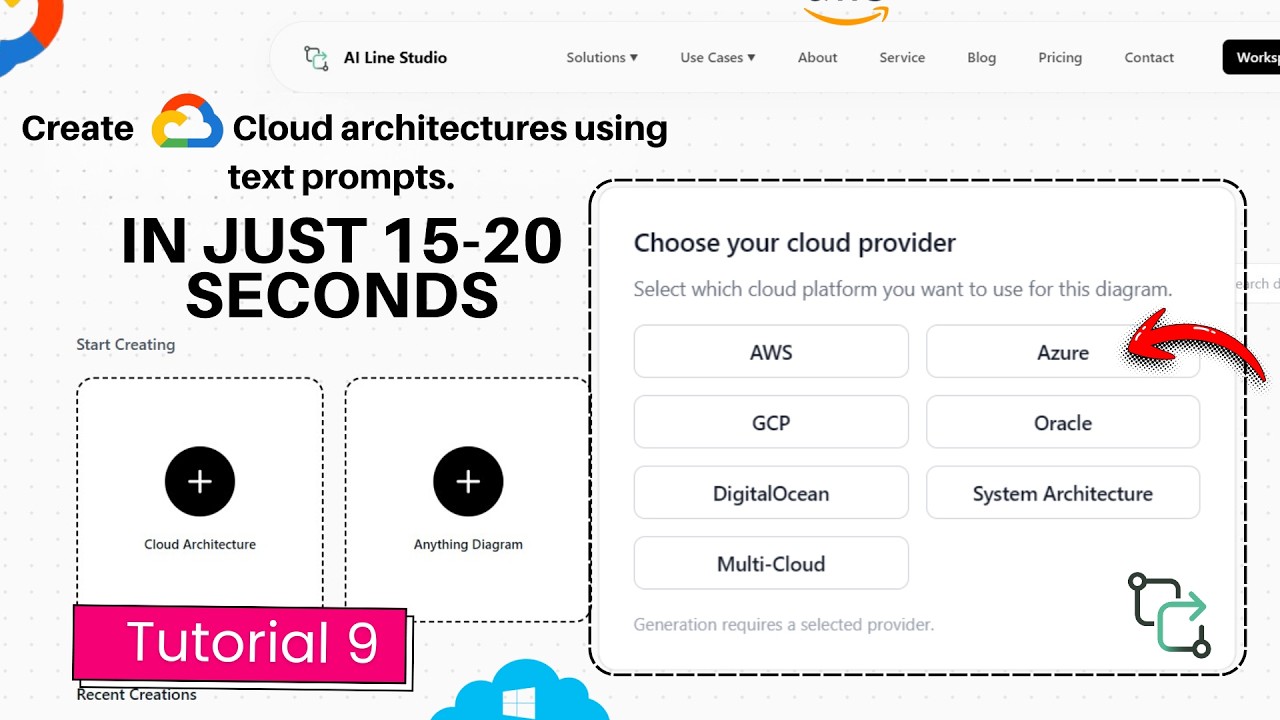
YouTube Tutorial
GCP Cloud Architecture Generator Create Diagrams in 20 Seconds Tutorial 9
Getting to the GCP Generator
After you register on AI Line Studio, the platform redirects you automatically to the Workspace page. From there, you click on Cloud Architecture, which opens the provider selection menu. Choose GCP, and you are inside the Google Cloud-specific generator.
This navigation path is consistent across all provider options, but the GCP selection loads a context that understands Google Cloud's service taxonomy. That matters because GCP organizes resources differently than AWS or Azure. A prompt about "serverless functions" in a GCP context correctly maps to Cloud Functions, not Lambda or Azure Functions. The tool handles that translation automatically.
What the GCP Generator Actually Builds
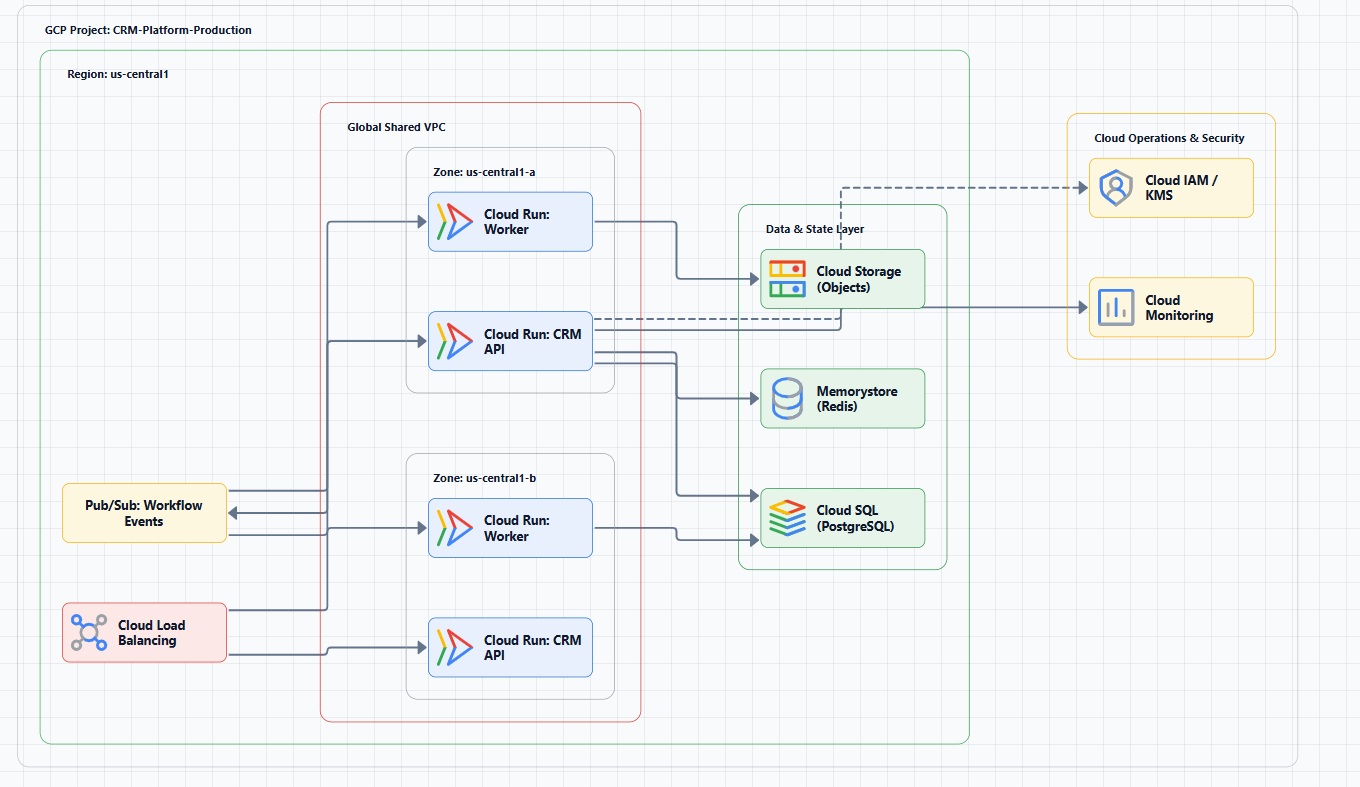
The cloud architecture solution does not just drop random icons on a canvas. It structures your diagram around the actual service categories you would find in a real Google Cloud deployment. The supported areas include Compute, Storage, Networking, Security, and other essential services.
When you prompt the tool with something like "GCP app with Cloud Run, Cloud SQL, and Cloud CDN," the generator recognizes each service, places it in the correct functional layer, and draws the logical connections between them. The Compute layer sits where compute should sit. Storage attaches to the services that read from it. Networking boundaries wrap the components that share a VPC.
That structured layout is what makes the diagram useful for design reviews, onboarding documentation, or runbooks. A diagram where every icon floats in random space forces the reader to decode the relationships manually. A diagram where services are grouped by function tells the story immediately.
Official Icons and Visual Accuracy
One of the most common complaints about generic diagram tools is icon inconsistency. You might find a GKE icon from 2019 next to a Cloud Run icon from 2023, or worse, a generic container symbol that could mean anything. AI Line Studio uses official Google Cloud components, so every symbol matches what system architects and DevOps engineers expect to see.
That visual accuracy is not cosmetic. When you present a diagram to a client, an auditor, or a new engineer, recognizable icons reduce cognitive load. The reader spends zero seconds wondering what a shape represents and full seconds understanding how the system works. In compliance documentation or architecture decision records, that clarity can be the difference between approval and a round of revision requests.
Speed and the Design Iteration Cycle
The generator produces enterprise-ready GCP architecture diagrams in 15 to 20 seconds. That speed changes how teams work. Instead of blocking an hour to build a diagram by hand, you can generate three or four variations in the time it used to take to place the first icon.
For teams practicing iterative design, that efficiency is practical. You can test a microservices layout, a monolith-with-API-gateway pattern, and a serverless event-driven architecture in a single meeting. Stakeholders see the options side by side, and you make decisions faster. If you are currently drawing everything by hand in Draw.io, switching to automated generation can compress your diagramming workflow from hours to minutes.
Prompting for GCP-Specific Output
The quality of the diagram depends on the specificity of your prompt. Vague descriptions like "GCP app" return generic results. Detailed prompts that name services, regions, and data flow directions produce diagrams you can use immediately.
AI Line Studio offers guidance on how to write prompts for diagrams that yield precise output. For GCP specifically, a few patterns help: name the exact services you need, indicate whether you are using managed or self-hosted options, and mention networking boundaries if they matter for your design.
If you are building a data pipeline, for example, specify whether you want Dataflow, Pub/Sub, or BigQuery. If you are designing a Kubernetes deployment, mention GKE Autopilot or Standard and whether you need Anthos for multi-cluster management. The more context you provide, the less manual adjustment you need after generation.
When to Use GCP Mode vs. Multi-Cloud or System Architecture
GCP mode is the right choice when your entire architecture lives on Google Cloud. If you are documenting a hybrid setup that spans GCP and AWS, you would use the Multi-Cloud option instead. If you are illustrating a general system design without cloud-specific services, System Architecture is the better fit.
That distinction matters because each mode loads a different icon library and layout logic. GCP mode knows that Cloud Spanner is a globally distributed database and places it accordingly. Multi-Cloud mode knows how to model a VPC peering connection between GCP and AWS. System Architecture mode focuses on generic components like APIs, databases, and message queues without vendor-specific branding.
Choosing the right mode upfront saves you from rebuilding the diagram later. If you are unsure which mode fits your project, the resources hub includes examples and decision guides.
Getting Started
You can try the GCP Cloud Architecture generator immediately after creating an account. The free plan includes access to the core generation capabilities, so you can test whether the output matches your team's standards before committing to a paid tier.
For teams that treat architecture diagrams as living documents, the 15-to-20-second generation time means you can keep your documentation in sync with your infrastructure without treating diagram updates as a separate project.
Key Takeaways
- A GCP cloud architecture generator produces structured, production-ready Google Cloud diagrams from plain text in 15 to 20 seconds.
- The tool supports Compute, Storage, Networking, Security, and other essential GCP services with official Google Cloud icons.
- You access the GCP generator from the Workspace page by clicking Cloud Architecture and selecting GCP.
- Specific prompts that name exact services, regions, and data flows yield the most accurate diagrams.
- GCP mode is optimized for pure Google Cloud environments; use Multi-Cloud for cross-provider designs.
Stop hunting for the right GKE icon and start building diagrams that communicate.
Create your free AI Line Studio account today and generate your first GCP architecture diagram in under 30 seconds.
Create Free AccountFrequently Asked Questions
After registering, you are redirected to the Workspace page. Click on Cloud Architecture, then select GCP from the provider options to enter the Google Cloud-specific generator.