
Add Orbiting Micro-Dots Animation in Network Diagram in AI Line Studio: A Tutorial
This tutorial shows you how to add orbiting micro-dots animation to network diagrams in AI Line Studio. After generating a small office network from a text prompt, you can enable micro-dots that orbit around connection lines to visualize how data moves between devices. The animation turns static network drawings into interactive visuals that help stakeholders immediately understand traffic flow through your system.
YouTube Tutorial
Add Orbiting Animation Network Diagram: AI Line Studio Tutorial 94
Setting Up Your Network Diagram
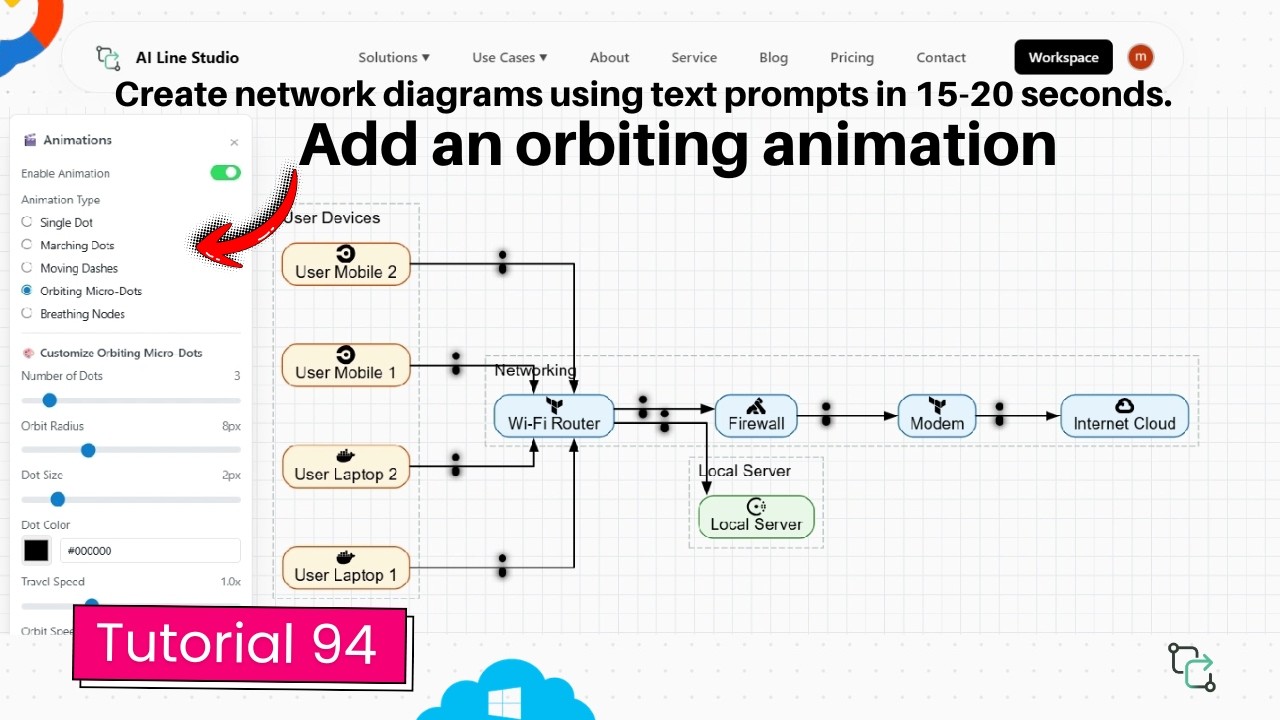
After registering on AI Line Studio, you land on the Workspace page. Click on the Cloud Architecture feature. In the next pop-up menu, select System Architecture. This selection is required because in AI Line Studio, you create network architecture diagrams using the system architecture feature. The video demonstrates this with an already generated diagram representing a basic network for a small office setup — where a few employees connect to a Wi-Fi router, which connects to a firewall and a modem. The entire diagram was generated automatically in just 15 to 20 seconds.
The generated diagram includes the core components of a typical office network: employee devices, a Wi-Fi router, a firewall, and a modem, all connected by lines that represent data paths. At this stage, the diagram is static. The connection lines show that devices are linked, but they don't show direction or data movement.
If you want cleaner initial outputs, the input guide covers how to write prompts that produce accurate network topologies.
How to Add Orbiting Micro-Dots Animation in Network Diagram in AI Line Studio
Once your diagram is ready, open the Animation Panel and click on the Orbiting Micro Dots option. Once activated, you will see the dots immediately begin orbiting around the edges — the connection lines — visually showing the data flow of the diagram.
The effect is immediate. You don't need to draw motion paths or configure trajectories manually. The platform detects the existing connection lines and applies the orbiting movement to them automatically. This means any network diagram you generate can support the effect without restructuring.
Adding this effect to your network visuals helps you clearly highlight data movement and connection dynamics within your network setup. Instead of explaining verbally that traffic flows from employee devices through the Wi-Fi router to the firewall and modem, the animation shows it.
Customizing the Animation Settings
After enabling the effect, you can adjust six properties to match your design needs:
Number of Dots — Increase or decrease the total number of orbiting dots on the lines. More dots create a denser, busier visual that suggests high throughput. Fewer dots keep the diagram clean and minimal.
Orbit Radius — Adjust the radius of the orbits around the connection paths. A larger radius makes the orbit more pronounced and easier to see from a distance. A smaller radius keeps the effect tight and subtle.
Dot Size — Scale the size of the micro-dots up or down. Larger dots are more visible in presentations or when projected. Smaller dots work better for detailed technical documentation where you don't want the animation to overpower the network layout.
Dot Colour — Change the color of the dots to match your presentation theme. Matching corporate colors keeps diagrams consistent with slide decks. High-contrast colors improve visibility in screenshots and recorded walkthroughs.
Travel Speed — Increase or decrease how fast the dots travel along the diagram pathways. Faster travel conveys high-throughput networks or real-time data streams. Slower travel works better for methodical walkthroughs where you narrate each connection step by step.
Orbit Speed — Speed up or slow down how quickly individual dots orbit. Faster orbit speeds create a more energetic, dynamic visual. Slower orbit speeds feel calmer and more controlled.
These settings apply globally to the diagram's edges, so the micro-dots move consistently across all connection lines.
Why Animated Micro-Dots Matter for Network Diagrams
Static diagrams document structure. They show what connects to what. But they don't show behavior. When you're presenting a network diagram to stakeholders who don't manage routers and firewalls daily, the direction and flow of data between employee devices and the internet isn't obvious from boxes and lines.
The orbiting micro-dots animation solves this by providing a clear visual indicator of active data paths. The orbiting dots follow the connection lines, making it easy for viewers to trace the flow from source to destination. This is especially useful during live presentations, recorded walkthroughs, or client reviews where you need the audience to follow your narrative without getting lost in the topology.
System architects can use this during design reviews to validate traffic assumptions and connection dynamics. When you're proposing a change to the network layout, animated flows help stakeholders understand the proposal without requiring them to read technical specifications. Software engineers benefit when onboarding to existing network environments. The animated dots act as a visual guide that helps them understand traffic patterns faster than reading through static documentation.
Comparing Animated Diagrams to Static Alternatives
Most diagramming platforms produce static outputs. You export a PNG, add annotations, and hope the audience understands the flow. If you're comparing approaches, Draw.io offers network shapes and manual drawing capabilities, but the output is fundamentally static. You can't make dots orbit along a connection line without exporting to an external animation tool.
AI Line Studio keeps the animation inside the diagram itself. That means you can share a live link, present directly from the canvas, or export a video loop without leaving the platform. The orbiting effect isn't layered on afterward — it's a native animation property of the connection.
For teams that produce network documentation regularly, this removes the step of manually creating motion graphics or recording screen captures to show data flow. The time savings add up when you need to produce multiple diagrams for different office locations or update existing documentation as network topologies evolve.
Getting Started With Your First Animated Network Diagram
The workflow is consistent regardless of network complexity. Generate your network diagram from a text prompt, open the Animation Panel, select the Orbiting Micro Dots option, and customize the settings to fit your context. The entire process from prompt to animated output takes under a minute.
If you're building diagrams for production documentation or client presentations, you can review the pricing plans to see which tier includes animation features and export options.
Key Takeaways
- Add orbiting micro-dots animation in network diagram in AI Line Studio to visualize data movement and connection dynamics in office and enterprise networks.
- The Animation Panel offers six customizable settings: number of dots, orbit radius, dot size, dot colour, travel speed, and orbit speed.
- Micro-dots orbit around all connection lines automatically without manual path configuration.
- The workflow from text prompt to animated diagram takes under a minute.
Ready to add orbiting micro-dots to your network diagrams?
Try the Animation Panel on AI Line Studio's free plan and make your network visuals more interactive in seconds.
Try It FreeFrequently Asked Questions
It is an animation effect that adds orbiting micro-dots along connection paths in network diagrams. You enable it from the Animation Panel, and the dots orbit automatically around every edge.