
How to Use an Azure Architecture Diagram Generator AI for Hub-and-Spoke Networks
An Azure architecture diagram generator AI can build a complete hub-and-spoke network with a VNet host and Azure Firewall in 15 to 20 seconds. After registering on AI Line Studio, you select Azure as your provider, name the project, enter a prompt like "hub and spoke diagram with a VNet host and Azure Firewall," and the tool returns a fully structured topology, no manual placement, no icon hunting.

YouTube Tutorial
this free ai tool Generates Azure Architecture Diagram in Seconds AI Line Studio Tutorial 23
Generating a Hub-and-Spoke Diagram in Under 30 Seconds
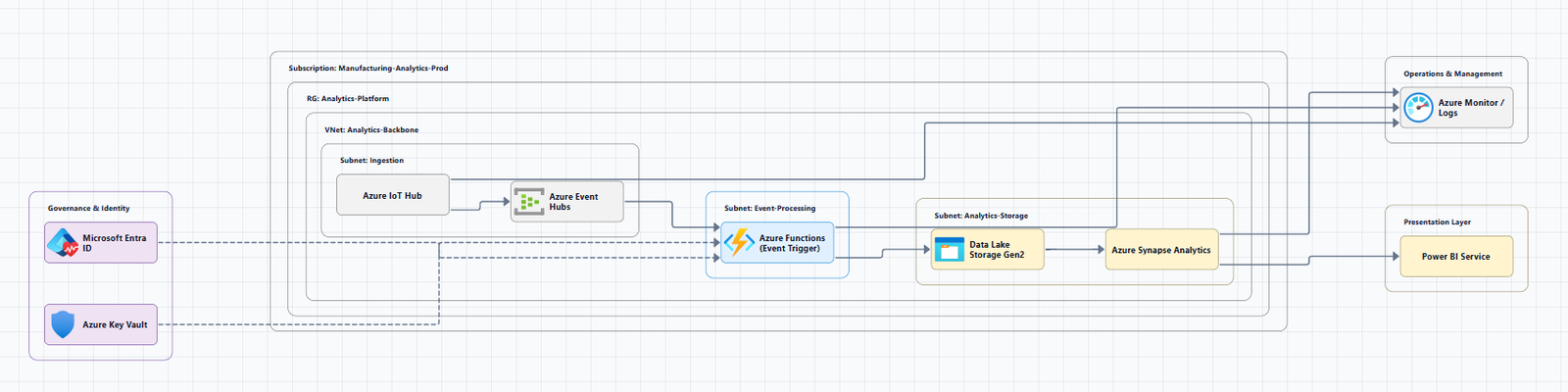
After registering on AI Line Studio, the platform redirects you to the main Workspace page. Under the Cloud Architecture options, select Azure as your target provider. Enter a custom name for your diagram and click Continue to open the builder.
In the input box at the top of the canvas, type your infrastructure scenario. For this tutorial, the prompt is "hub and spoke diagram with a VNet host and Azure Firewall in Azure." Click Generate, and the tool builds the complete architecture automatically. Within 15 to 20 seconds, a fully structured diagram appears on screen showing the hub virtual network, virtual machine hosts, and Azure Firewall.
The output is not a rough sketch. The hub VNet sits at the center, the spoke networks connect through it, and the firewall occupies the correct security boundary. Every icon is an official Azure symbol, and the layout follows the topology patterns that cloud architects expect to see in production documentation. You can export the result immediately or refine it with the canvas controls before sharing it with stakeholders.
What an Azure Architecture Diagram Generator AI Produces
An Azure architecture diagram generator AI does more than place icons on a canvas. It interprets the relationships in your prompt and arranges components according to real Azure networking principles. When you mention a hub-and-spoke topology, the tool understands that the hub VNet acts as the central point of connectivity and that spoke VNets peer into it. It places the Azure Firewall in the hub where it can inspect traffic between spokes and to on-premise networks.
This contextual awareness separates automated generation from template-based drawing. In a traditional editor, you would drag a VNet shape, draw peering lines, add a firewall icon, and label every connection manually. Here, the cloud architecture solution handles the spatial logic. You describe the intent, and the system applies the Azure-specific layout conventions.
The result is a diagram you can drop directly into a design review, compliance packet, or onboarding document. Stakeholders see a recognizable topology instead of a generic box-and-line drawing that requires verbal explanation. For teams managing complex environments, that clarity reduces miscommunication and speeds up approval cycles.
Why Instant Generation Beats Manual Diagramming
Manual diagramming tools force you to build every element by hand. You browse icon libraries, align shapes, draw connectors, and adjust labels. That process works for simple diagrams, but a hub-and-spoke network with multiple VNets, subnets, firewalls, and peering connections can take an hour or more to build correctly.
Using an automated approach cuts that time to 15 or 20 seconds. The speed is not just convenient; it changes how teams work. Architects can iterate through three or four design variations in the time it used to take to build one. If you are currently drawing everything by hand in Lucidchart, switching to prompt-driven generation means you spend your time evaluating designs instead of arranging shapes.
For teams that treat architecture diagrams as living documents, this efficiency is critical. Azure environments change frequently, new regions, additional spokes, updated firewall rules. When the infrastructure evolves, you rewrite the prompt and regenerate rather than rebuilding the canvas from scratch. That keeps documentation accurate without creating a maintenance backlog.
Writing Prompts That Match Azure Topology Patterns
The quality of the output depends on the specificity of your prompt. Vague requests like "Azure network" return generic results. Detailed prompts that name services, topologies, and security boundaries produce diagrams that require little or no post-generation editing.
The tutorial demonstrates this with a hub-and-spoke example. By specifying the VNet host, the Azure Firewall, and the hub-and-spoke pattern, the prompt gives the tool enough context to place every component correctly. You can extend this pattern to other Azure topologies: "Azure three-tier web app with Application Gateway and SQL Managed Instance," or "microservices on AKS with Azure Service Bus and Key Vault."
AI Line Studio offers guidance on how to write prompts for diagrams that yield precise output. A few principles help: name the exact Azure services you need, indicate the network topology if it matters, and mention security boundaries such as firewalls or private endpoints. The more context you provide, the less manual adjustment you need after generation.
If you are documenting a migration, include both the current and target environments in your prompt. If you are designing a new system, mention scaling requirements or redundancy zones. The tool uses that context to arrange components in a way that reflects real-world Azure topology.
Exporting and Sharing Your Azure Diagram
When the diagram meets your standards, you can export it in multiple formats. The platform supports SVG for high-quality vector output, PNG for standard image sharing, and animated exports if you have enabled motion effects on the canvas. That flexibility matters for teams that reuse diagrams across different channels, the same architecture can become a static PDF for auditors, a PNG for Slack, and a motion-enabled asset for a sprint review.
The free plan includes access to the Azure generation capabilities, so you can test whether the output matches your team's standards before upgrading. For additional tutorials, prompting strategies, and diagram examples, visit the resources hub.
Key Takeaways
- An Azure architecture diagram generator AI can produce a complete hub-and-spoke network with VNet, VM hosts, and Azure Firewall in 15 to 20 seconds.
- The tool interprets Azure-specific topology patterns and places official icons according to real networking principles.
- You access the feature from the Workspace page by selecting Cloud Architecture, choosing Azure, and entering a plain-English prompt.
- Specific prompts that name services, topologies, and security boundaries yield the most accurate diagrams.
- Export options include SVG, PNG, and animated formats for different audiences and channels.
Build your first Azure hub-and-spoke diagram without touching a single shape.
Create your free AI Line Studio account and generate a complete topology in 20 seconds.
Try It FreeFrequently Asked Questions
After registering, go to the Workspace page, select Cloud Architecture, choose Azure as your provider, name your diagram, and click Continue. Enter your prompt in the input box and click Generate.