
GCP Cloud Architecture Generator AI: Google Cloud Diagrams in 20 Seconds
A GCP cloud architecture generator AI can turn a plain-text description of your Google Cloud infrastructure into a structured, production-ready diagram in 15 to 20 seconds. AI Line Studio's Cloud Architecture feature is built on the philosophy "stop drawing, start explaining." After registering, you land on the Workspace page, click Cloud Architecture to enter the AI Builder, select GCP as your provider, name your diagram, and enter your use case. The AI engine generates the visual automatically.

YouTube Tutorial
How to Generate Google Cloud Architecture Diagram, GCP is AI Line Studio Tutorial 31
How the GCP Cloud Architecture Generator AI Works
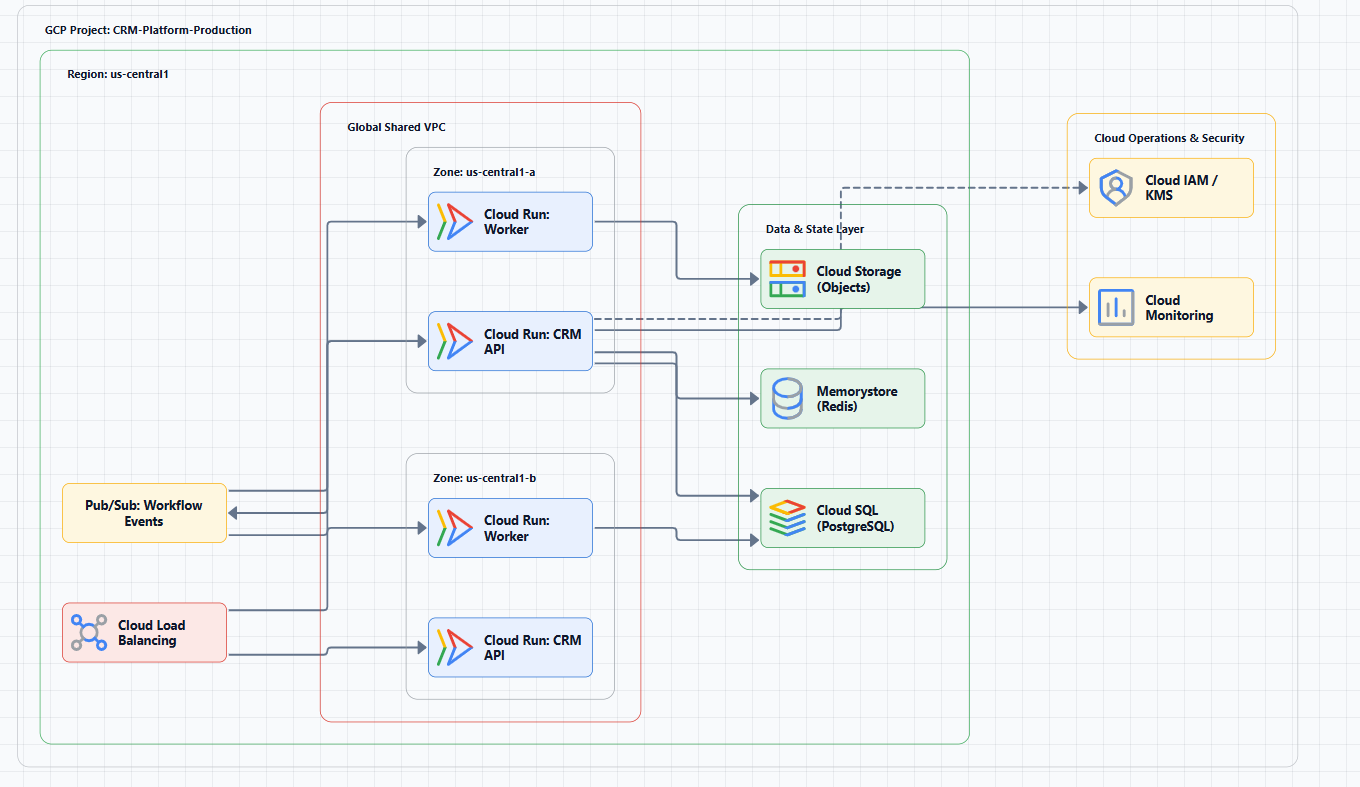
The core idea behind AI Line Studio is "stop drawing, start explaining." Instead of dragging icons and drawing connectors by hand, you describe what you are building in natural language and the platform produces the visual structure. For Google Cloud Platform, this means you can move from a text description of your infrastructure to a production-ready diagram faster than opening a traditional drawing application.
After you register or log in, the platform redirects you to the primary Workspace page. From there, click on the Cloud Architecture option. This redirects you to the interactive AI Builder canvas, the platform's dedicated workspace for generating cloud diagrams. Since this tutorial focuses on Google Cloud, you select GCP as the cloud provider. The interface then asks you to enter a unique name for your diagram. After naming it and clicking Continue, you enter the canvas where the generation happens.
The workflow is intentionally minimal. There is no template library to browse, no shape palette to configure, and no canvas size to set. The AI Builder is designed for one purpose: converting your architectural intent into a structured visual as quickly as possible. For teams already operating in GCP environments, this directness removes the friction that typically slows down documentation and design reviews. For teams managing complex cloud estates, the cloud architecture diagram generator handles the initial layout automatically, so you can focus on communication rather than manual placement.
From Natural Language to Structured GCP Diagrams
The critical step in the generation process is the use case prompt. You input your specific architecture requirement into the central input box on the canvas. The tutorial demonstrates this with the prompt: "Shared VPC in two projects all together from one GCP account." That single sentence contains enough semantic structure, a Shared VPC host project, service projects, and the organizational context of a single GCP account, for the AI engine to interpret the intended topology.
This is where the tool differs from template-based diagramming. A template library might offer a generic "VPC" diagram, but it would not know that you need two projects attached to a Shared VPC, nor would it understand that both projects belong to the same billing account and organization. The AI engine parses the relationships embedded in your natural language description and maps them to actual GCP services and configurations.
The output uses official Google Cloud components. The generated diagram includes the correct service icons, logical groupings, and connection lines that reflect real GCP topology. A Shared VPC diagram, for example, would show the host project with its VPC network, the service projects with their subnets, and the IAM or network peering relationships that bind them together. The layout is not a generic cloud sketch with Google logos pasted on top. It is a structured representation built from the specific services and relationships you described.
For DevOps engineers who manage multi-project GCP estates, this accuracy matters. A diagram that correctly depicts Shared VPC host and service project boundaries communicates more to a platform team than a generic network diagram. The components are recognizable, the connections are accurate, and the layout follows GCP conventions.
What Happens During the 15-to-20-Second Generation
Once you click the Generate button, the AI engine processes your prompt and produces a fully structured, clear, and production-ready GCP architecture diagram in 15 to 20 seconds. In that same timeframe, manual diagramming might get you one or two service icons placed on a canvas. With the generator, you get a complete first draft of a multi-service topology that includes correct icons, logical grouping, and directional connections.
That speed changes when and how teams create diagrams. Rather than treating architecture visualization as a final documentation step, architects can generate diagrams continuously throughout the design process. After each requirements change, after each sprint review, after each stakeholder conversation. The cost of producing a current diagram drops to almost nothing, which means the incentive to let documentation fall out of date also disappears.
The output is clean enough to use immediately. You can drop the generated diagram into a migration proposal, a compliance package, an internal runbook, or an executive presentation without additional formatting or design work. For teams operating under delivery pressure or managing fast-moving infrastructure, that polish removes a common bottleneck.
If you are evaluating how this approach compares to traditional tools, the comparison of AI Line Studio vs Draw.io illustrates the tradeoff. Draw.io offers deep manual control and an extensive shape library, which is ideal for highly customized illustrations. The GCP builder in AI Line Studio prioritizes speed, service accuracy, and structured layout, which is ideal when you need a correct, readable GCP diagram now rather than a perfect one tomorrow.
Getting the Best Results From Your Prompts
The quality of the generated diagram depends on the clarity of your input. While the tool accepts natural language, structured natural language produces better results. Mentioning specific GCP services, "Shared VPC," "Cloud Run," "Cloud SQL," "Cloud Storage", helps the engine identify the correct components. Describing relationships explicitly, "the service project attaches to the host project's VPC", improves the fidelity of the layout.
The how to write prompts for diagrams covers practical techniques for writing architecture descriptions that the generator can parse precisely. The guide covers techniques for specifying projects, regions, service relationships, and network boundaries in ways that improve output accuracy. You do not need to write infrastructure-as-code or provide JSON definitions. Natural language works. But explicit service names and relationship verbs produce cleaner results than vague descriptions.
You can try it free without entering payment information. The free plan includes access to the GCP Cloud Architecture generator, so you can test the 15-to-20-second workflow on your own Google Cloud projects before deciding whether to upgrade for additional capabilities.
For more tutorials, feature guides, and best practices, visit the resources hub.
Key Takeaways
- A GCP cloud architecture generator AI can produce fully structured, production-ready Google Cloud diagrams in 15 to 20 seconds from natural language input.
- After registering, navigate to the Workspace, click Cloud Architecture, select GCP, name your diagram, and enter your use case prompt.
- The tutorial demonstrates the prompt: "Shared VPC in two projects all together from one GCP account."
- The AI engine uses official GCP components and generates a clear, structured layout automatically.
- The feature is available on the free plan with no payment required to start.
Ready to generate your GCP diagrams from text?
Register on AI Line Studio, select GCP Cloud Architecture, and create your first diagram in under 20 seconds. Explore pricing plans to get started.
Explore Pricing PlansFrequently Asked Questions
It is a diagramming tool that generates professional architecture diagrams for Google Cloud Platform using official GCP services. After registering, you select Cloud Architecture, choose GCP, name your diagram, and enter a natural language prompt.